
TicketSpice Event Pages: A Virtual Tour
Every event you host in Dragonfly has a dedicated TicketSpice Event Page. These pages handle:
Ticket checkout
Attendee tracking
Event access
Automated attendee communications
Important: This article is a virtual tour of the backend setup. Practitioners can view what is set up for each event, but they cannot save or publish changes. This is for informational purposes only.
Navigating to Your Event Page
Log into your TicketSpice account.
Go to the Pages tab.
Click the pencil icon on the event you wish to view.
You will enter the event editor, which is organized into multiple tabs that manage different aspects of the event.
Page Editor Tabs Overview
1. Page Builder
Displays the event name as the page heading
Paid events include a section for member to access their discounts
Edit Ticket Information shows ticket types and additional dates
Checkout process layout
2. Virtual Event
This tab defines the attendee experience and content access. Key sections include:
Basic Setup: Messaging and login/welcome screens for attendees
Livestream / Meeting: Zoom link for live events
On-Demand Viewing: Videos or content that attendees can access before or during the event, including recorded-only events if the event is not live
Downloads: Files, worksheets, or handouts for attendees (Reiki symbols, guides, PDFs)
As part of this tab, the Access Page shows attendees how to enter the event. The first screenshot below illustrates the locked view, which is what attendees see before they enter their access code:
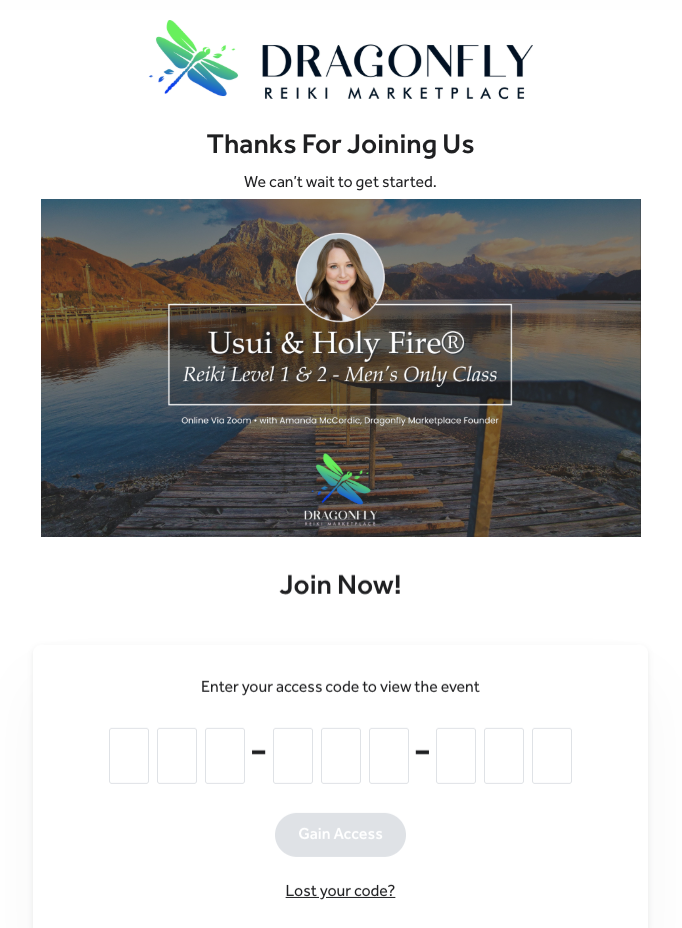
Once the attendee enters their code and gains access, the page updates to the unlocked view, shown in the screenshot below:

Note: By default, only Basic Setup and Livestream / Meeting are included in events. If you would like additional content, on-demand videos, or downloads, just request them when submitting your event.
3. Coupons
Shows any coupon setup for the event.
4. Actions
Contains conditional statements that control checkout features.
5. Confirmation Page
Displays what attendees see immediately after purchase.
6. Emails
Confirmation Emails: Shows the messaging sent to attendees after purchase; additional messaging can be included if needed. This can be instructions for what they may need to send the host before the event such as Reiki Level 1 & 2 certificates, pet photos and details etc.
Reminder Emails: A standard reminder is sent one day before the event.
Hi there,
This is a friendly reminder that your upcoming event is tomorrow, [event name]
To support your experience, please plan to have:
A quiet, comfortable space
A journal or paper and something to write with
An open, relaxed mindset
This event will begin at [time] Eastern. Please be sure to check your local time zone for the correct start time.
If you have any questions, feel free to reach out.
Warmly,
Dragonfly Reiki Marketplace
If desired the practitioner can request that additional reminder emails be added. This can be helpful in cases like classes where they may have steps that need to be completed beforehand.
Winback Emails: Not currently used. There is an additional cost to sending these emails, which we currently have made the decision not to use at this time.
7. Promote
Shows sharing and promotion settings for the event. Google Event Discovery is automatically enabled on all events.
8. Settings
Contains the essential configuration of the page.
Summary
This tour is designed to help you familiarize yourself with the structure and setup of your TicketSpice Event Pages. Understanding what exists in each tab — including ticket setup, virtual event content, and emails — will help you communicate effectively with Dragonfly if any adjustments are needed.