
Contributing to Dragonfly
Reiki Articles (Podcast Library)
Reiki Articles (Podcast Library)
Sharing your knowledge through Reiki Articles is a wonderful way to educate others, inspire others on their Reiki journey, and contribute to the Dragonfly community. Whether you're sharing personal experiences, practical techniques, or educational content, your articles help build a valuable resource for our members and visitors.
The same publishing process is also used for the Podcast Library. If you're adding a podcast episode instead of a written article, you'll follow the same steps outlined in the guides below.
Getting Started
To create a new Reiki Article or Podcast Library post, log in to your Dragonfly account and navigate to Sites > Blogs. From there, you can create a new post and begin adding your content.
After you've created your post, use the guides below for detailed instructions on formatting your content and completing the publishing settings.
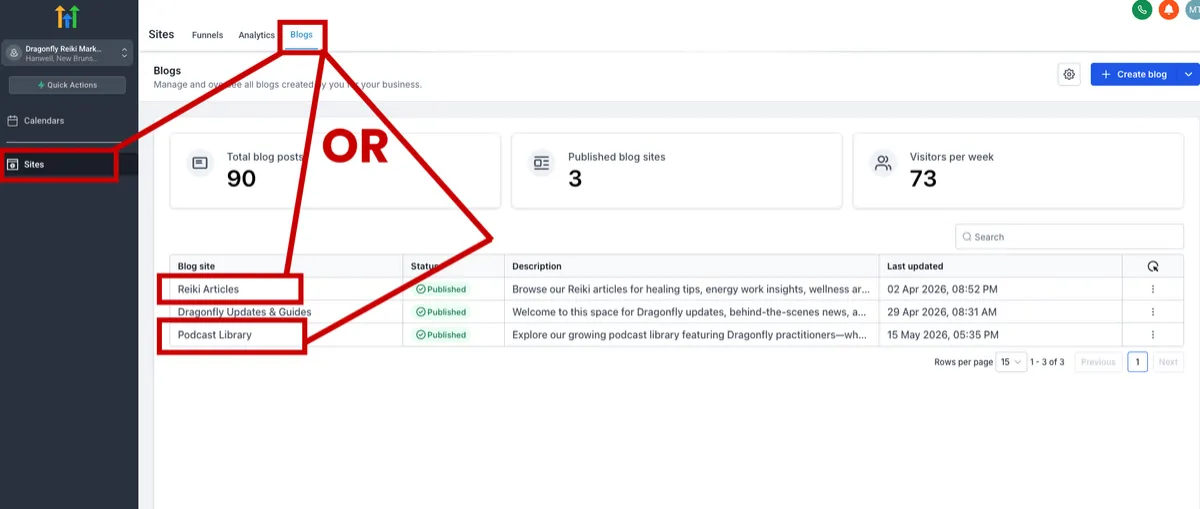
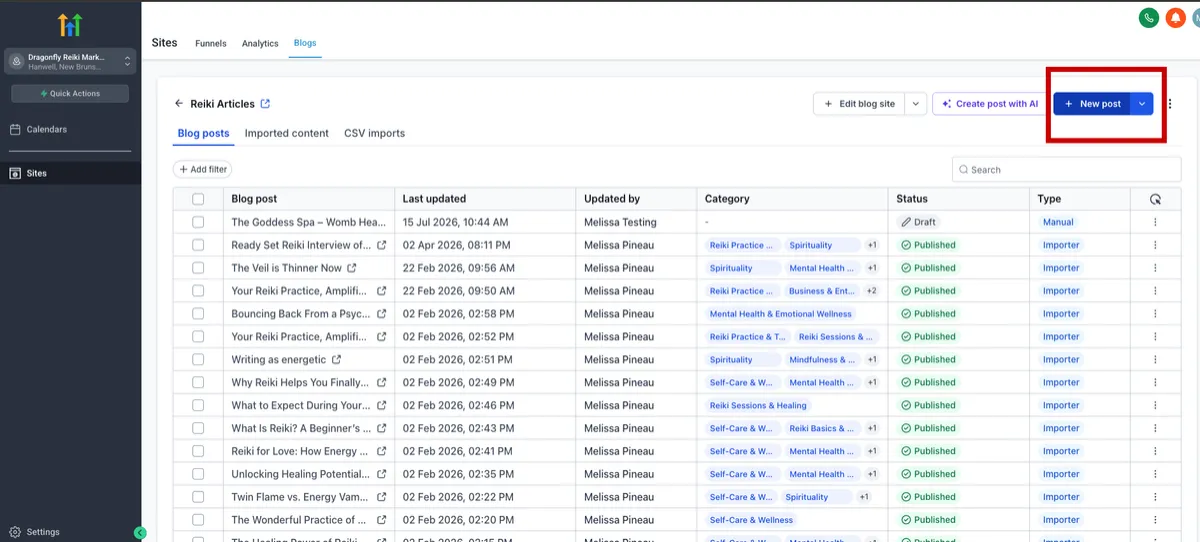
First-Time Reiki Article Authors (or Podcast Library contributers)
If this is your first Reiki Article and you would like a link to your articles added to your Practitioner Profile, simply email [email protected]. Melissa will add a Reiki Articles link under your Services & Offerings section, making it easy for visitors to discover your published content.
Helpful Guides
Select one of the guides below to learn more about a specific step in the publishing process.
Best Practices for Formatting Reiki Articles
Well-formatted Reiki articles are easier to read, accessible to more participants, and more likely to be found through search engines. Following a few simple practices ensures your content is clear and navigable. These practices are also great to use in the formatting of your Dragonfly profiles or own personal websites.
Use Clear Headings
Headings help organize your content and guide readers through the article. They make it easier to skim, support screen readers, and help search engines understand the structure of your content.
In the Dragonfly blog editor, you can select the type of text from a dropdown menu that defaults to “Paragraph.” This is where you can choose between different heading levels.
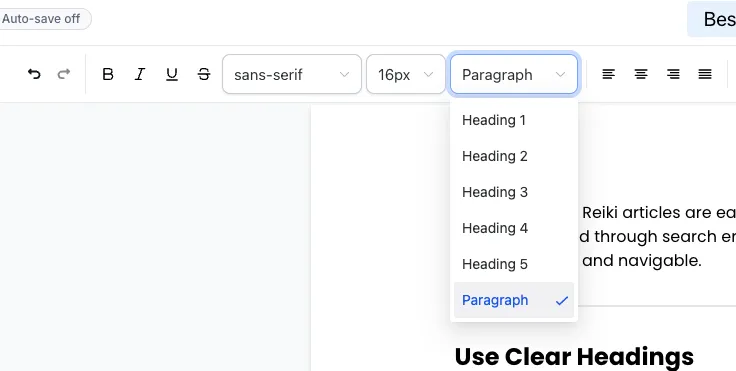
Heading Levels and Their Uses:
Heading 1 (H1): Usually reserved for the main title of your article. Use this only once per article.
Heading 2 (H2): Ideal for main sections within your article, like “Use Clear Headings” or “Keep Paragraphs Short.”
Heading 3 (H3): Good for subsections or points within a main section, such as “Heading Levels and Their Uses.”
Heading 4 (H4) and beyond: Rarely needed, but can be used for additional layers of subpoints if necessary.
By using headings thoughtfully, your article becomes structured and easier for participants to read and navigate, while also ensuring that assistive technologies like screen readers can follow the content correctly.
Keep Paragraphs Short
Try to keep paragraphs to two to four sentences. White space improves readability on both desktop and mobile devices and makes it easier for assistive technologies to process the text.
Organize Key Information
When helpful, use short bulleted or numbered lists to clarify points or steps. For example:
Highlight essential terms with bold text
Provide step-by-step instructions when needed
Keep lists concise so they remain readable
Lists help participants quickly identify important information and make content easier to navigate.
Include Links and Visuals Thoughtfully
Include links to related articles, sessions, or resources as needed. Images or screenshots can illustrate concepts, but always add descriptive alt text so visually impaired participants can access the information. This also helps search engines understand your content.
Proofread Before Submitting
Check for spelling, grammar, and readability. Reading aloud can help confirm that sentences flow naturally and are easy to follow. Proofreading ensures your article is clear and accessible for all readers.
Why These Practices Matter
Proper formatting makes articles readable, accessible, and discoverable. It benefits participants with disabilities, supports search engines, and ensures your content reaches as many people as possible.
Conclusion
By using clear headings, short paragraphs, concise lists, descriptive visuals, and careful proofreading, your Reiki articles become easier to read and navigate. These formatting choices help participants access and engage with your content efficiently. At the same time, these are only best practices for formatting — you should always feel free to write and structure your article in the way that feels energetically guided to you. Your voice and approach are yours to express.
How to Complete the “Publish or Schedule” Page on Reiki Articles
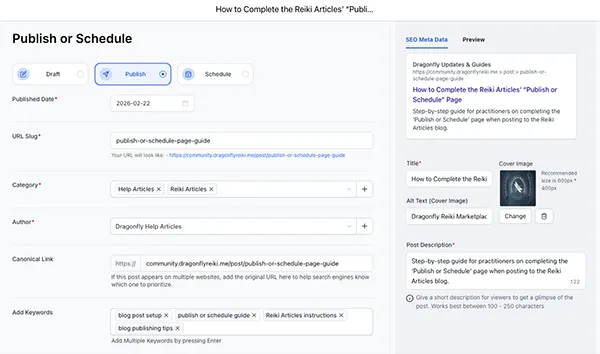
After you finish writing your article and click Continue in the blog editor, you will arrive at the Publish or Schedule page.
This is where you finalize how your article appears on the public Reiki Articles blog.
Below is an overview of each section and how to complete it.
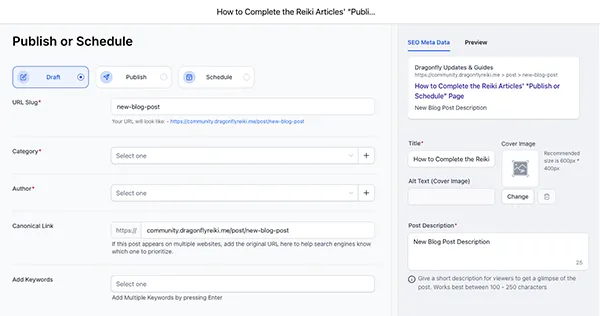
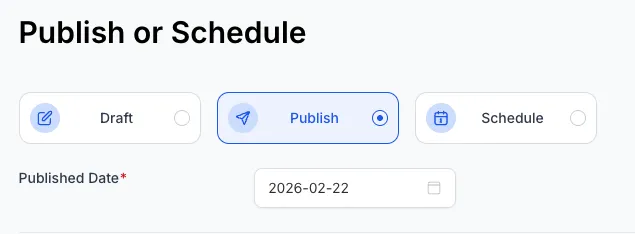
Draft, Publish, or Schedule
At the top of the left column, you will choose how your article is released.
Draft
Selecting Draft saves your work without publishing it.
Use this if your article is not ready yet or if you plan to return and edit it later.
Publish
Selecting Publish makes your article immediately visible on the Reiki Articles blog. It will automatically set the date to the current date.
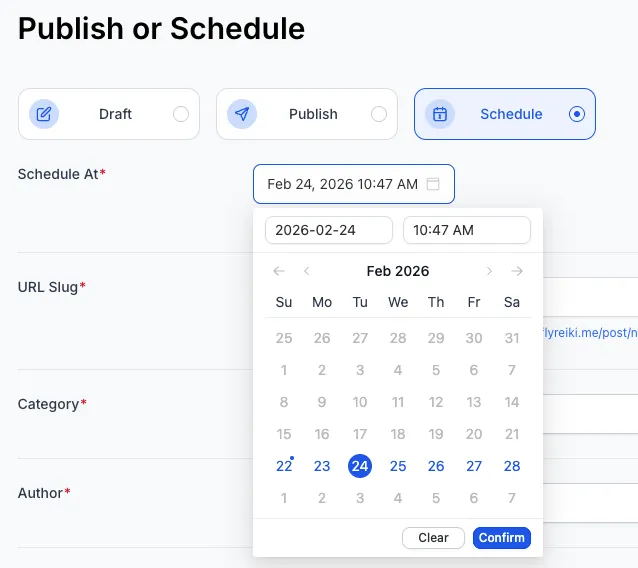
Schedule
Selecting Schedule allows you to choose a future date and time for your article to go live.
Additional fields will appear where you can select the publish date and time.
URL Slug (Required)
The URL Slug is the web address of your article.
Focus on making it short and clear — the system will automatically handle lowercase letters, hyphens, and special characters.
Example for this article:
Title: How to Complete the Reiki Articles’ “Publish or Schedule” Page
URL Slug:
publish-or-schedule-page-guide
Once set, this becomes the direct link to your article and is what readers will see in their browser.
Category (Required)
Select the categories that best fits your article from the dropdown menu. You can choose more than one however we recommend not to choose too many, 1-3 categories is best.
If no existing category fits your topic or you feel an additional is needed, click the large + beside the dropdown to create a new one.
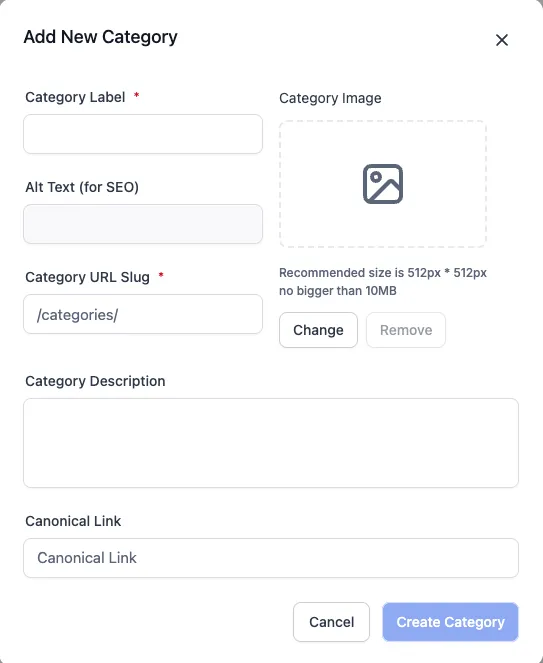
When adding a new category, you will need to complete:
Category Label (the name readers will see)
Category URL Slug
You may leave the following fields blank:
Category Image
Alt Text (for SEO)
Category Description
Canonical Link
Author (Required)
Select your name from the Author dropdown. Only one author can be set per article.
If your name does not appear, click the large + to add yourself as a new author.
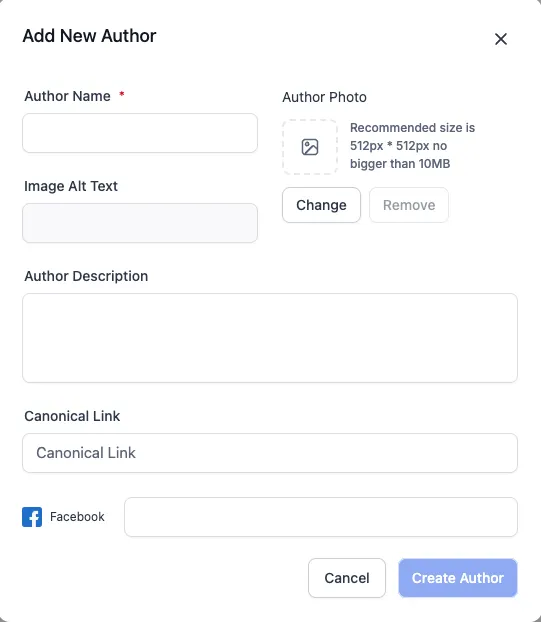
When adding a new author, complete:
Author Name
Optional but Recommended: Add a photo
To add a photo:
Click Change
Media Storage will open
You may be able to search for your existing practitioner profile photo by typing your name into the search. If there are no results or you wish to us a different image click the upload button.
If you upload a photo, Image Alt Text will be required.
Alt text simply describes the image — in this case, your name is sufficient.
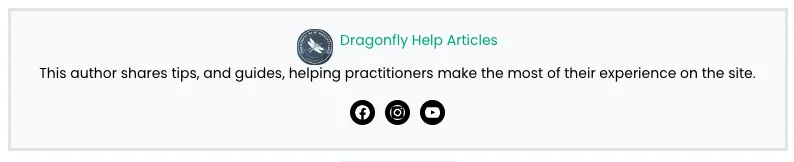
Author Description is optional but recommended.
This short paragraph appears at the end of your article. Keep it brief — 1–2 short sentences.
Leave Canonical Link blank.
You may also add links to Facebook, X, LinkedIn, Instagram, or YouTube
These will appear in the author box at the bottom of your article.
Click Create Author when finished filling out the New Author window.
Canonical Link
You do not need to fill this out. It will automatically adjust when you set your URL Slug. This becomes the direct link to your article, which you can share anywhere online.
Add Keywords (Optional)
Keywords are not searchable through the Reiki Articles blog search bar. The blog search will only searches article titles. However, keywords can help external search engines better understand your content.
If you choose to add them, use short phrases related to your topic.
For this article, examples of relevant keywords could include:
blog post setuppublish or schedule guideReiki Articles instructionsblog publishing tips
We can also use the tags to create links to all articles that use that tag. An example of when we would use a link from a tag would be the Podcast Library. A keyword of the Practitioners name can be added to their podcast posts so we can add filtered link to their profile.
In the right column, you will see additional settings.
Article Title
You can add or update your article title here.
Because the Reiki Articles search bar relies on titles, it is important that your title clearly reflects the topic of your article.
Example:
How to Complete the “Publish or Schedule” Page on Reiki Articles
This is a strong title because:
It clearly states the action the practitioner will take (Complete the Publish or Schedule Page)
It references the platform/blog (Reiki Articles) for clarity
It is descriptive and searchable, ensuring practitioners can find this article when using the search bar
A clear, descriptive title like this makes your article easier to locate and immediately tells readers what they will learn.
Click Change to add a cover image.
Recommended size: 600px by 400px
This image appears next to your article on the main Reiki Articles page.
If you upload a vertical image, the system will force it to be 600px wide, which can push your article content far down the page. If the image you would like to use is vertical, you can make some adjustments in Canva or your preferred program to make it work a little. For a guide on how to easily adjust your image click the "Edit Cover Image" guide.
Post Description (Required)
The Post Description is a short summary that gives readers a preview of your article.
This appears:
On the main Reiki Articles page
In search previews
As part of SEO
It works best between 100–250 characters. Keep it clear and descriptive so readers know what your article is about.
Example for this article:
“Step-by-step guide for practitioners on completing the ‘Publish or Schedule’ page when posting to the Reiki Articles blog.”
Final Check Before Publishing
Before selecting Publish or Schedule, confirm:
Your release option is selected (Draft, Publish, or Schedule)
URL Slug is complete
Category is selected
Author is selected
Cover image is added (recommended)
Alt text is filled in (if image added)
Post Description is complete
Conclusion
The Publish or Schedule page ensures your article is properly organized and displayed on the Reiki Articles blog. Taking a few extra minutes to complete each required field helps your article appear clearly, remain searchable by title, and present your work in a polished way to readers.
How to Edit a Image to be 600px by 400px

For this example we will take the above image and make adjustments to have it fit the 600px by 400px size.
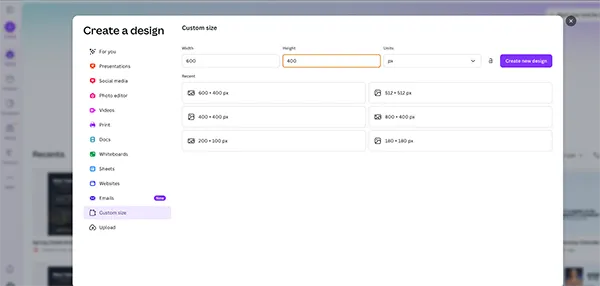
Create a new file in canva by clicking Custom size and set it to the following: 600px by 400px
Import your vertical image and adjust it to fill the canvas vertically. Make sure the image is centered. Depending on its dimensions, there may be more or less empty space around it.
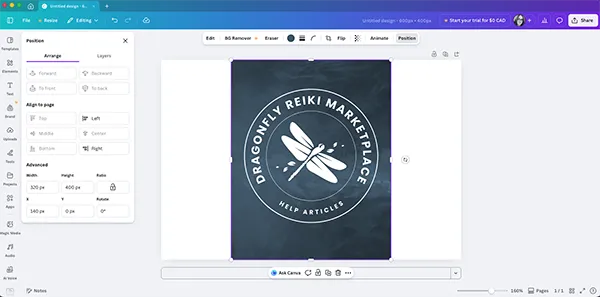
Right-click your vertical image and select Duplicate. Expand the duplicate to fill the full width of the canvas. Then click Position and make sure it is centered both vertically and horizontally. Finally, right-click the duplicate again and select Send to Back.
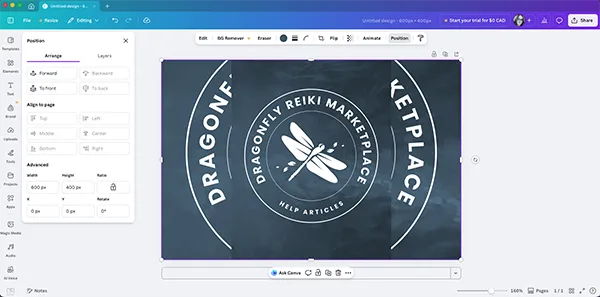
Reduce the transparency of the full-width image to around 50. If your image is darker, you may want to change the canvas background to black or another complementary color: if your image is already in place, move it aside slightly so you can click the white background, select Change Color, choose black (or another color of your choice), and then recenter your image. You can stop here, or continue to the next step and apply a blur effect to the image.
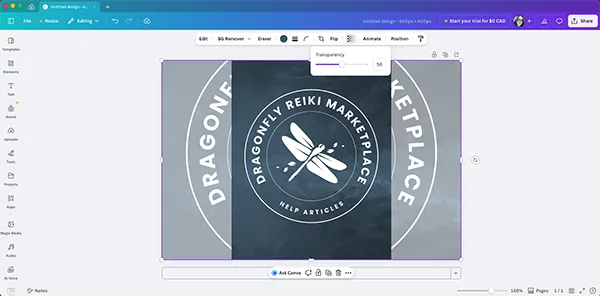
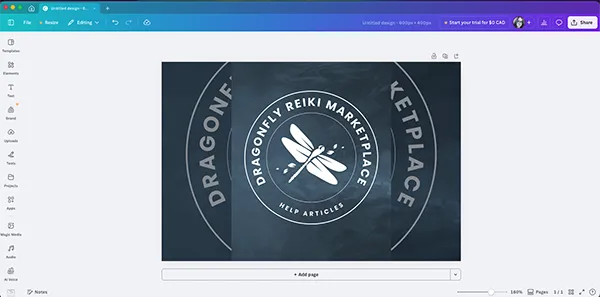
For a more polished look, you can apply a blur effect. Click the full-width background image, then select Edit. Under Effects, locate Blur and choose to apply it to the Whole Image. We recommend setting the intensity to 50. Once finished, click the back arrow to return.
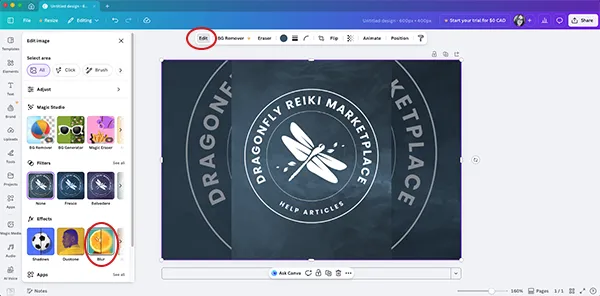
Once adjusted, upload your updated image.

If possible, select the “Blog Post Images” folder before uploading to help keep Media Storage organized. If you forget, that is completely fine.
If you add a cover image (recommended), you will be required to complete Alt Text (Cover Image). This text describes the image for screen readers, allowing visually impaired readers to understand what the image shows.
Copyright © 2026 by Dragonfly Reiki Marketplace. All Rights Reserved.