
Dragonfly Starter Kit
Tax Information
Tax Information
Running a business out of your home has many benefits, including flexibility, autonomy, and even tax savings. You can reduce your income tax payable to the government by deducting home expenses that are related to your business, such as internet, phone and home office space.
If you use an accountant or bookkeeper, make sure to let them know that you are running a business out of your home so that they can apply the applicable deductions when they prepare your tax returns.
Canadian Practitioners
The rules and regulations are different in each jurisdiction, so if you prepare your own taxes and are located in Canada, we recommend starting here:
How to claim - Home office expenses for employees - Canada.ca
For our Canadian Practitioners, if you earn less than $30,000.00 CAD per year from your Reiki business, we will take care of your sales tax reporting and remittance on your behalf. If you earn more than $30,000.00 CAD from your Reiki business, you will be responsible for your own sales tax reporting and remittance. See below some information about obtaining a GST/HST number for your business:
Register for a GST/HST account - Canada.ca
American Practitioners
For our American practitioners, check out this information from the IRS regarding small business and self-employed taxation:
Small Businesses Self-Employed | Internal Revenue Service (irs.gov)
United Kingdom Practitioners
Here is some tax information on self-employment in the UK:
Business tax: Self-employment - detailed information - GOV.UK (www.gov.uk)
Wherever you are in the world, we encourage you to reach out to a local tax expert to help you fully maximize your tax deductions and ensure compliance with local tax requirements.
Why Dragonfly? (What does my 20% get me?)
We collect 20% of the fee charged per session to cover a variety of expenses, including maintenance and upkeep of the platform, processing fees, marketing, and support staff.
In exchange, you benefit from the ability to reach a broader audience, support from our team and the Reiki community. Have a question about your Reiki techniques or business? Share it in our Healer Lounge forum where you can connect with other practitioners.
Additionally, payment will be collected upon booking, so you will not have to worry about the awkward discussions around payment for your services. Payments will be remitted to you bi-weekly by your method of choice.
Dragonfly affords you the flexibility to set your own schedule and set your own hours, so whether you’re looking to start a side-hustle, or make your Reiki practice your full time job, you can adjust your calendar availability to schedule appointments that work for you.
Steps to Connect Google Calendar
Step 1: Navigate to Calendar Connections
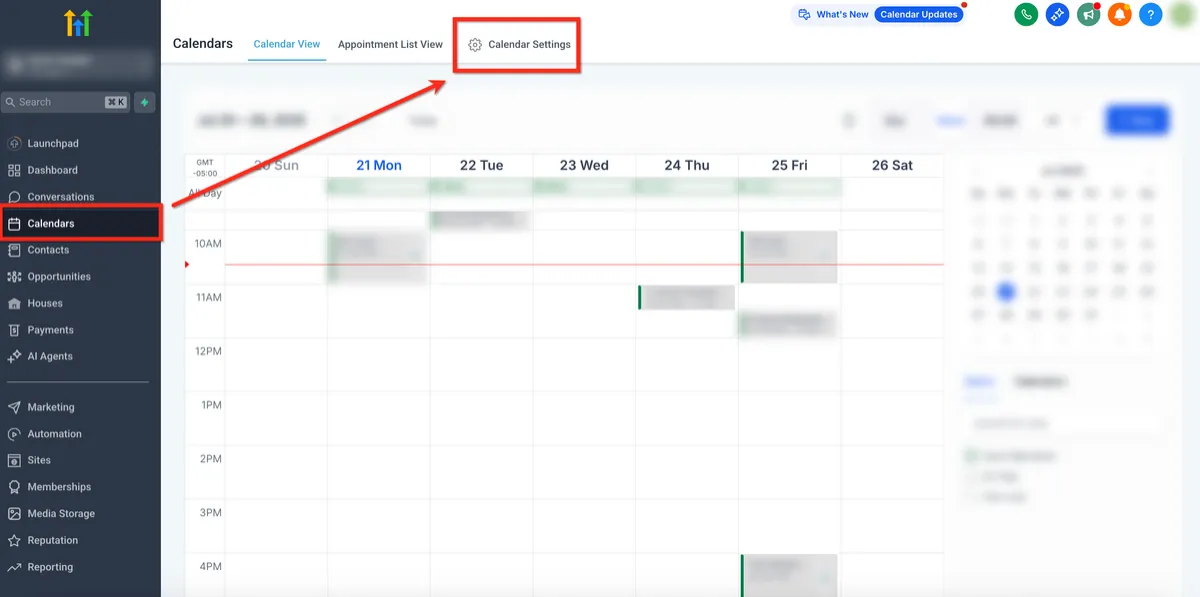
i. Once logged in select Calendars then click Calendar Settings in the upper right corner
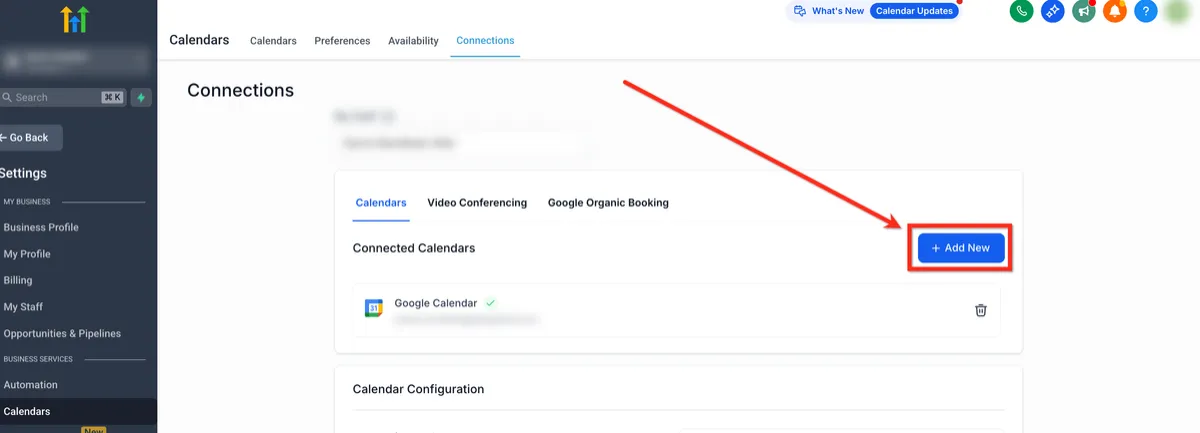
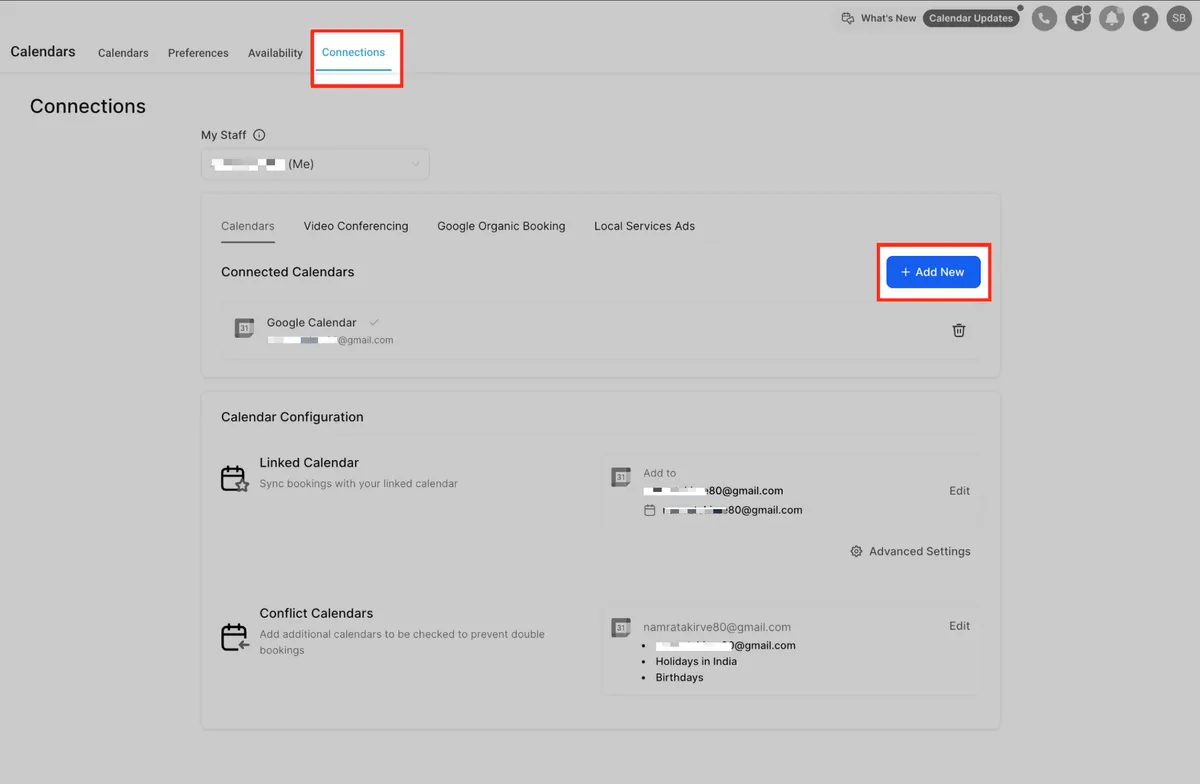
ii. Click on the Connections tab in the upper navigation ribbon and then + Add New button to add a new calendar.
Step 2: Authenticate with Google
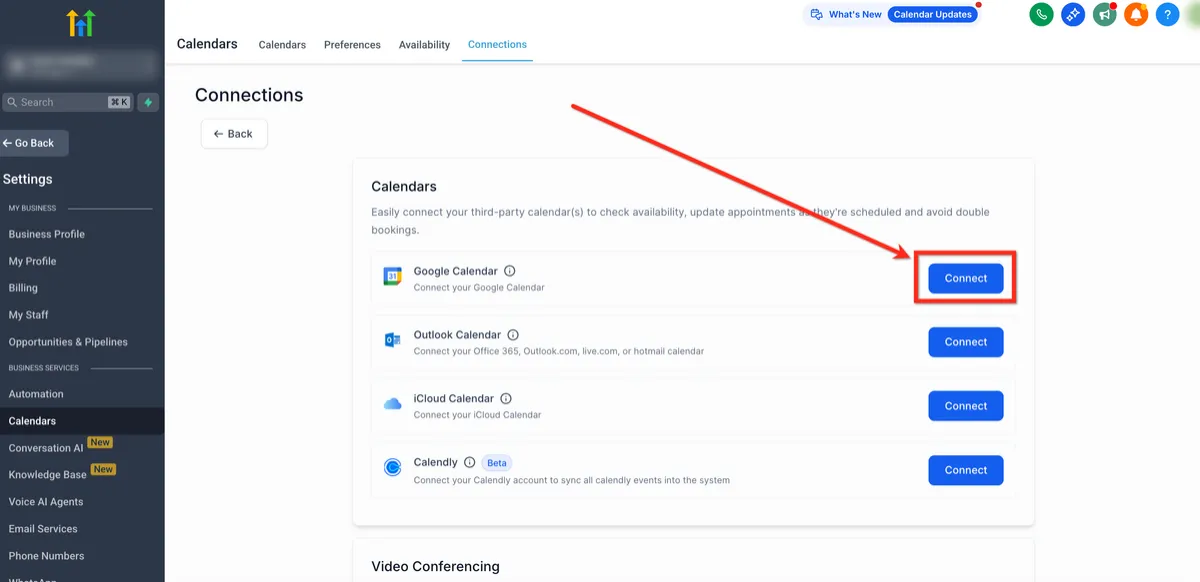
i. From the Connections page, click on the Connect button beside Google Calendar.
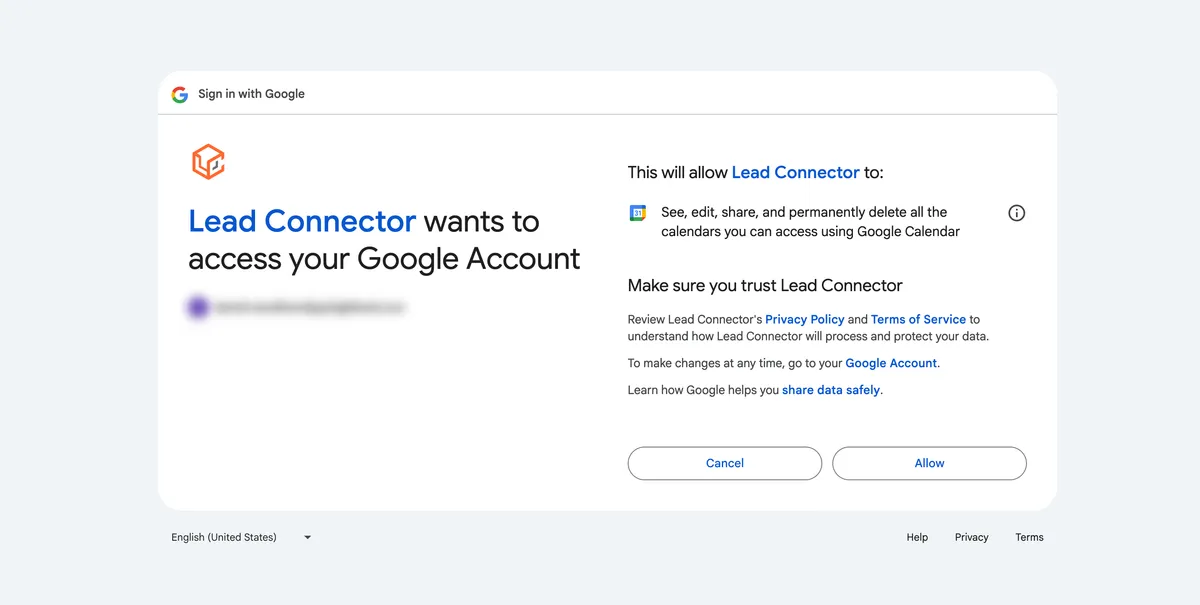
ii. Select the Google account you want to use.
iii. Accept all requested permissions, including: Calendar (read/write), Profile and Email access.
Steps to Connect iCloud Calendar
Step 1: Obtain App-specific Password From Apple
Before connecting your iCloud calendar, you'll need to obtain your app-specific password from Apple. This unique password is distinct from your regular Apple account password. Apple mandates the use of an app-specific password, in addition to enabling two-factor authentication, when connecting to third-party applications.
Step 1a: Sign Into Apple
Sign in to https://appleid.apple.com/
Step 1b: Enable 2F Auth
Enable two-factor authentication under the Security section if you haven't already done so.
If you skip enabling two-factor authentication at this point and run into trouble later, come back and enable it.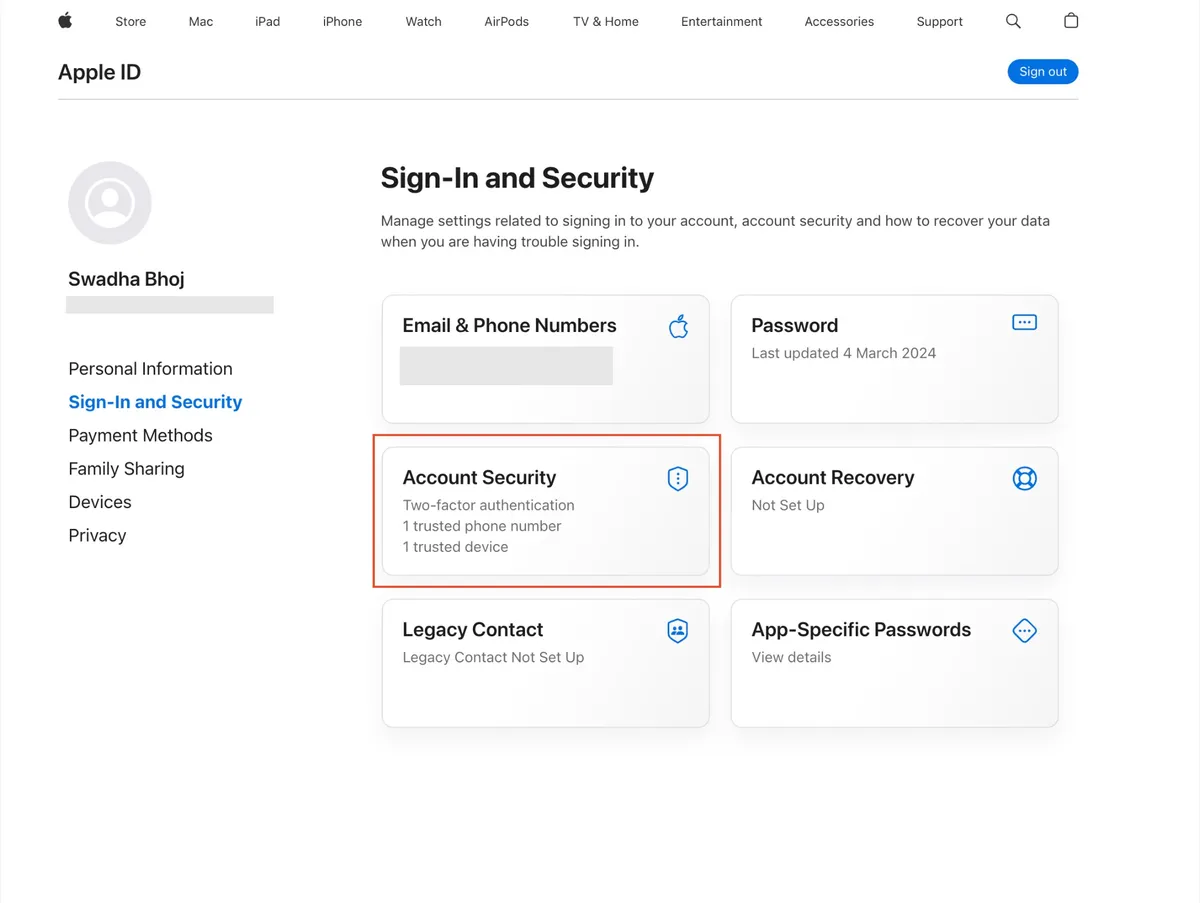
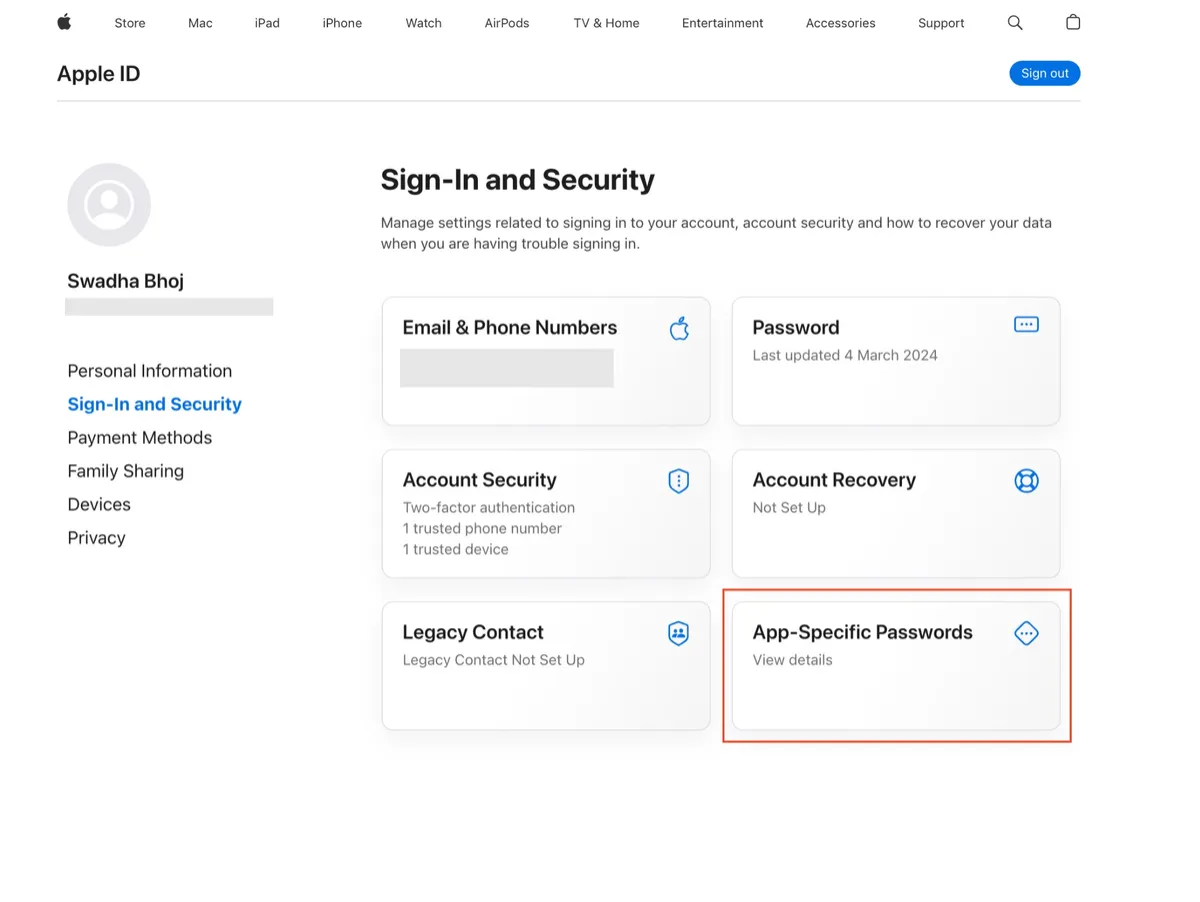
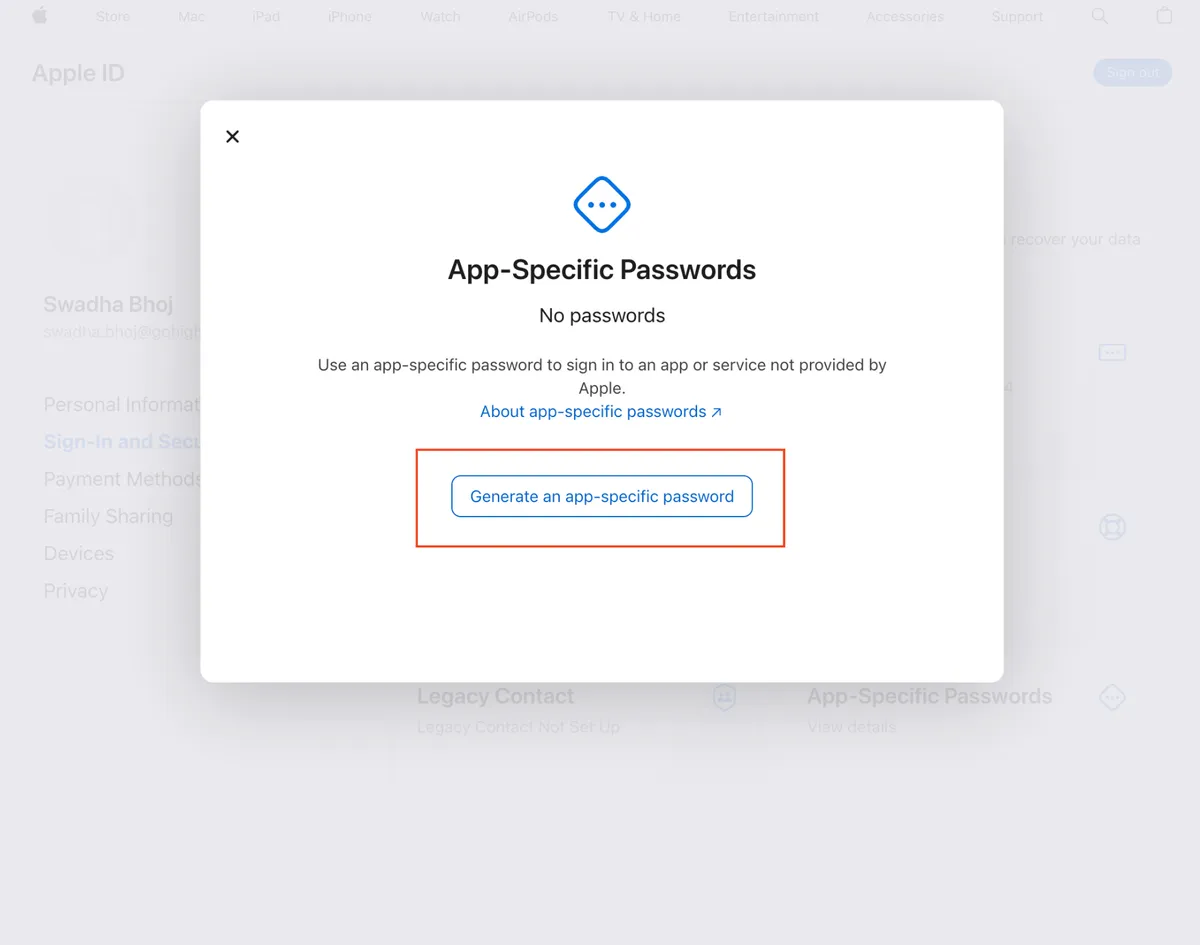
Step 1c: App-Specific Password
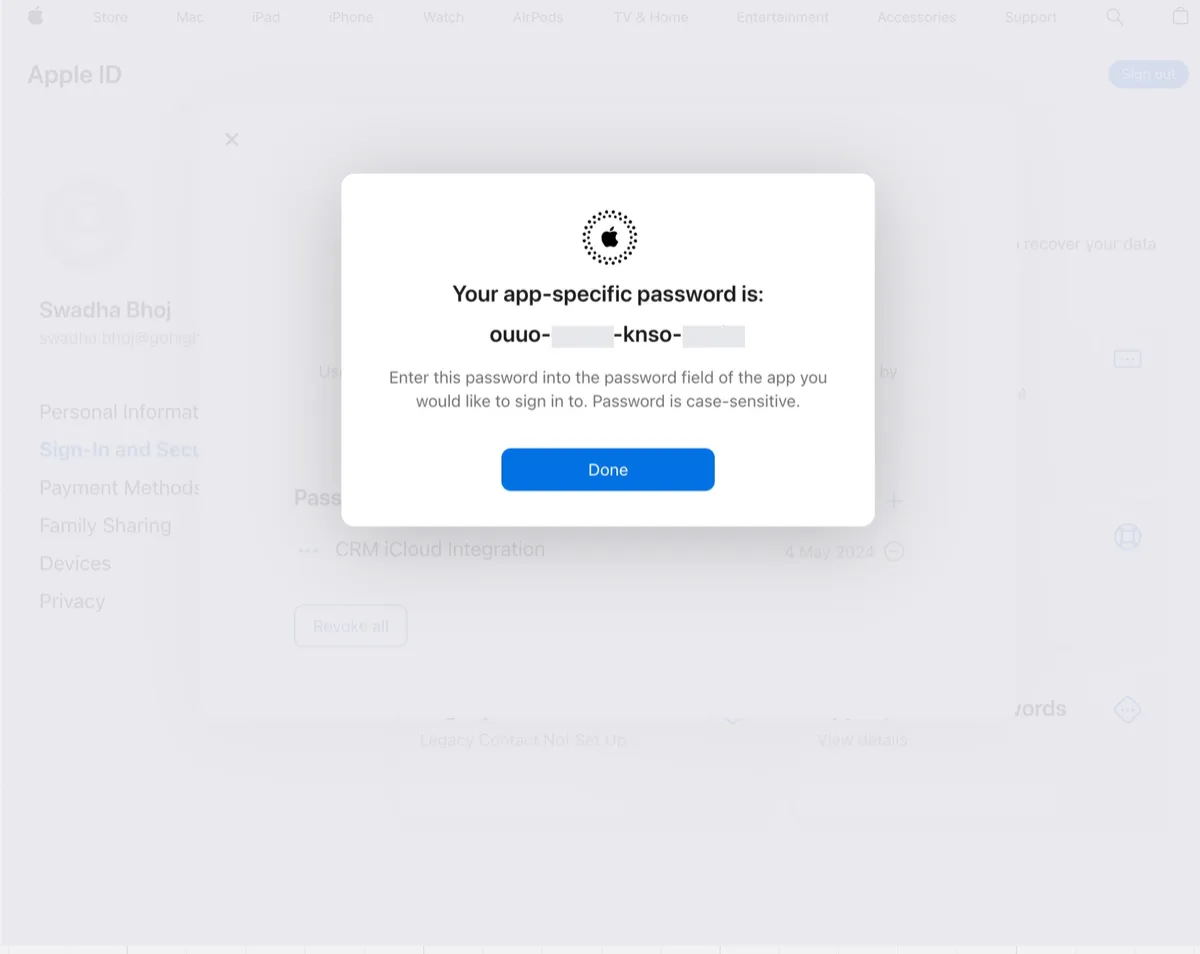
Click into the Sign-in and Security section and choose "App-Specific Password" then in the modal click "Generate an app-specific password".
Step 1d: Name The App-specific Password
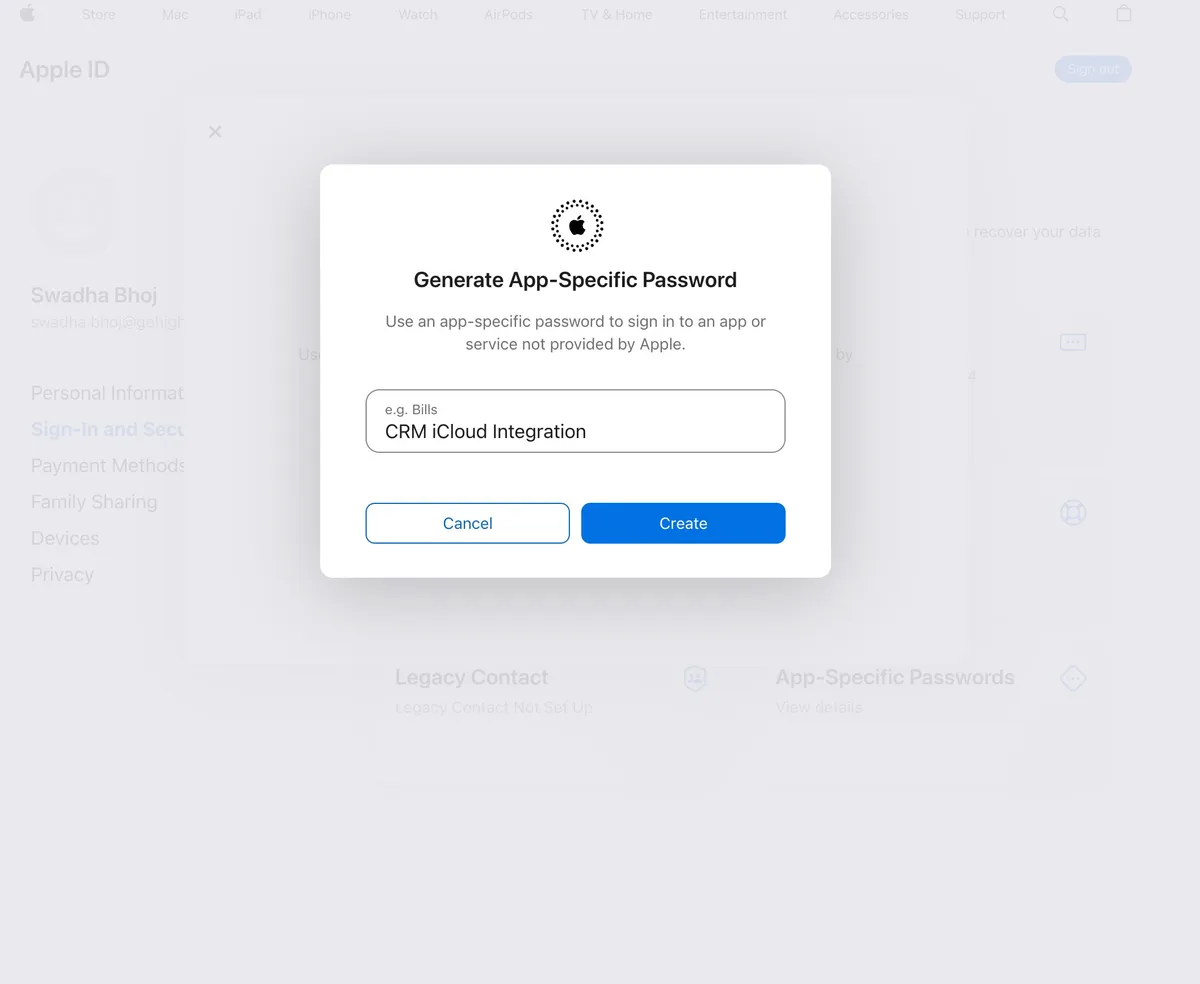
Enter a label for the password (for instance, 'CRM iCloud Integration') and click 'Create.'
Step 1e: Save The App-specific Password
Copy and safely keep the generated app-specific password. This will be used when connecting your iCloud calendar in the next step.
Step 2: Connect Your iCloud Account to HighLevel
Using the app-specific password from Step 1, connect your iCloud account to HighLevel.
Step 2a: Add New Connected Calendar
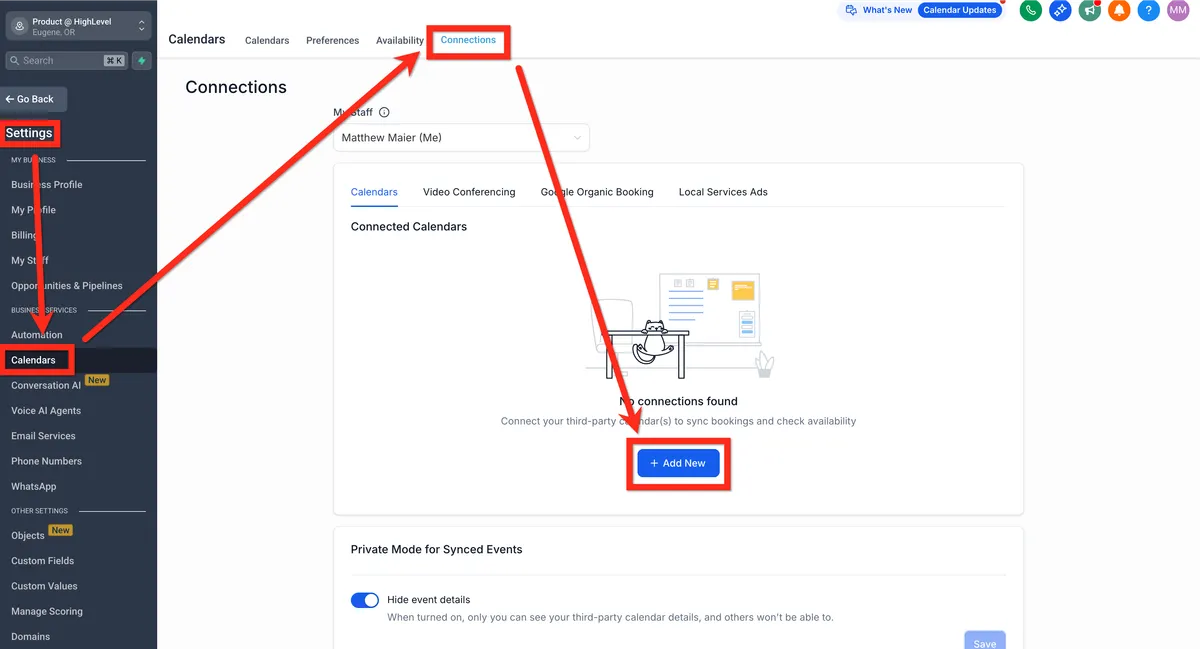
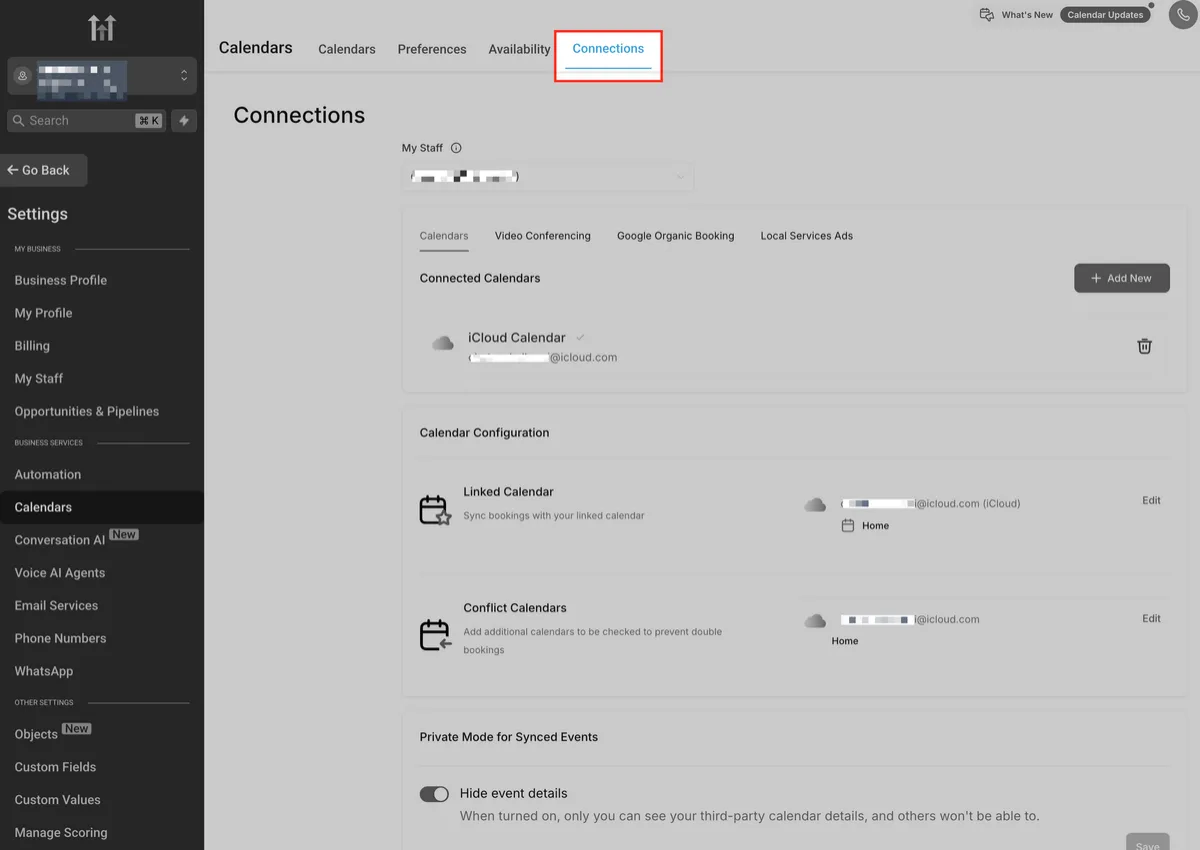
Navigate to subaccount > settings > calendars > connections and click "+ Add New".
Step 2b: Save Credentials
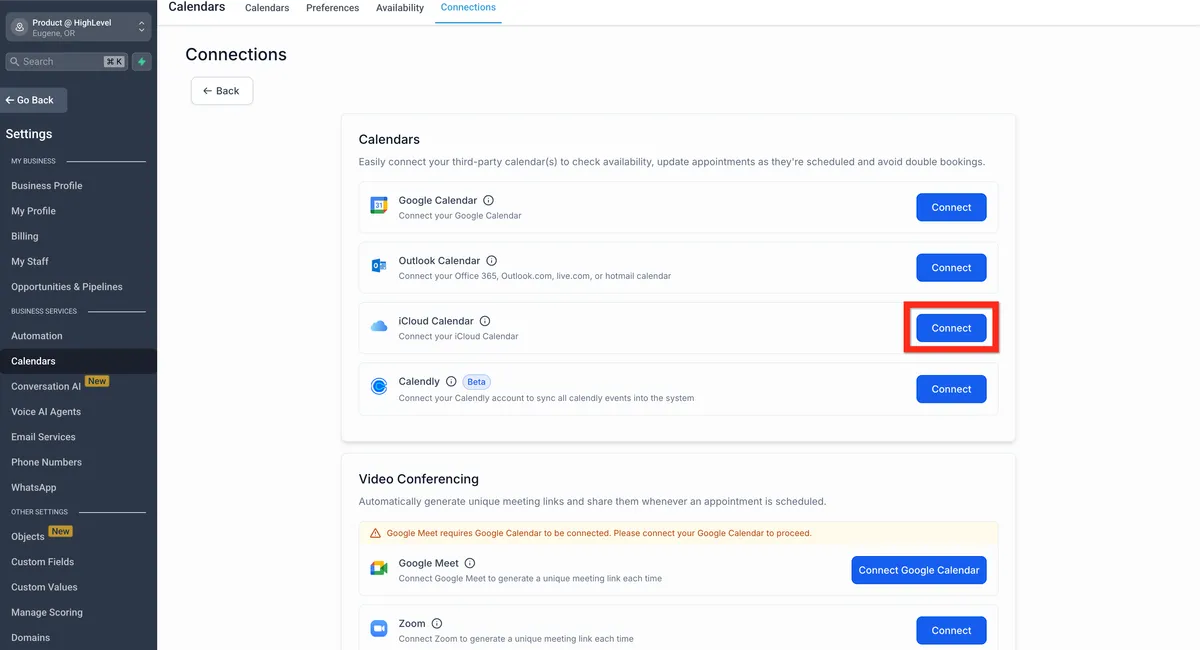
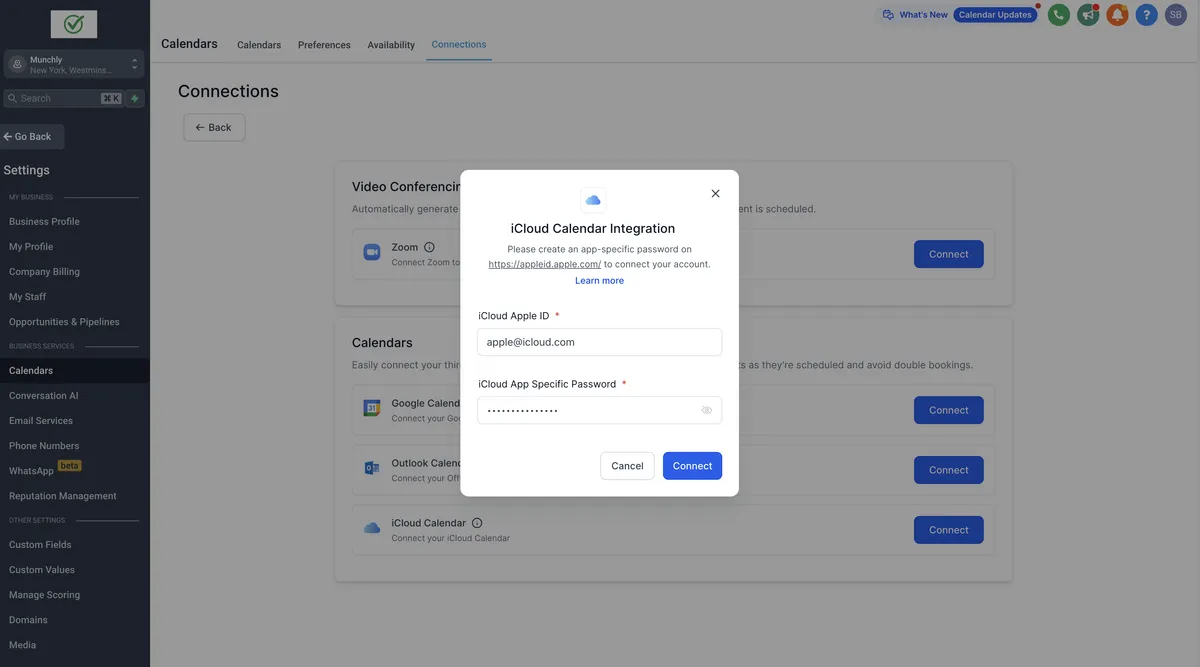
Click "Connect" in the iCloud Calendar widget, then enter your iCloud Apple ID and app-specific password from Step 1, then click "Connect".
Step 3: Configure Calendars
After connecting iCloud in step 2, you need to set your primary linked calendar and "blocking" calendars.
If you have not connected a 3rd party calendar then this Calendar Configuration panel will not appear. So, if you don't see it, go back and connect another calendar.Step 3a: Calendar Configuration Panel
Navigate to subaccount > settings > My Profile > Calendar Configuration OR subaccount > settings > calendars > connections > calendar configuration (they take you to the same panel).
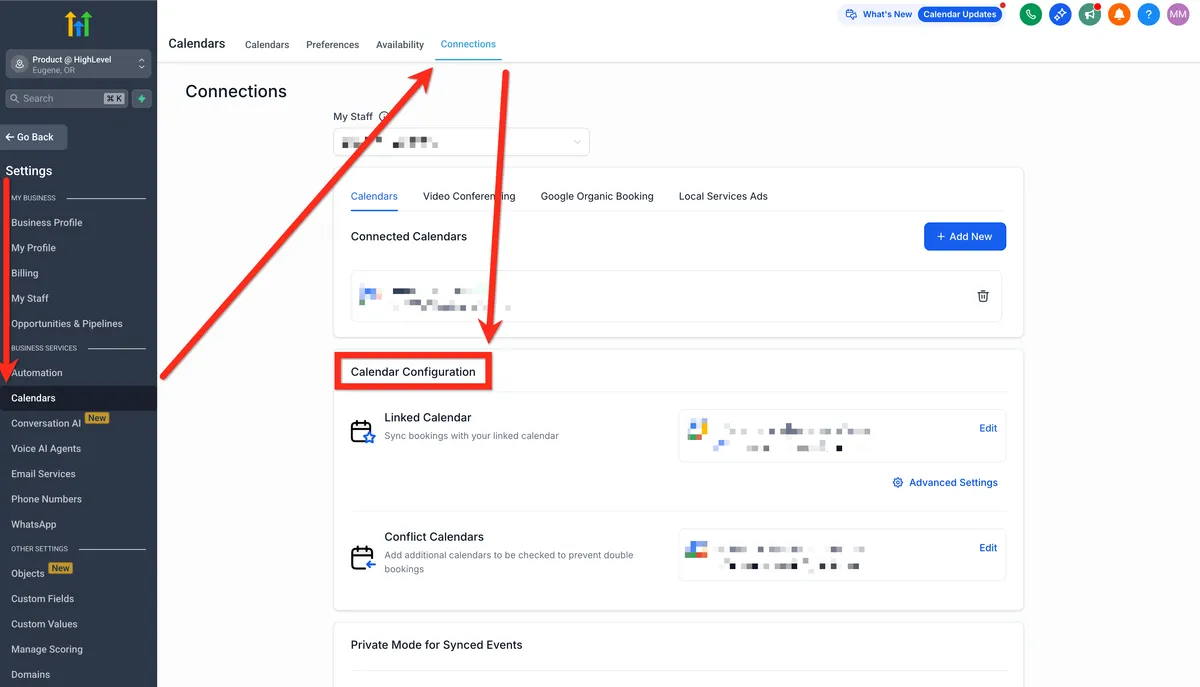
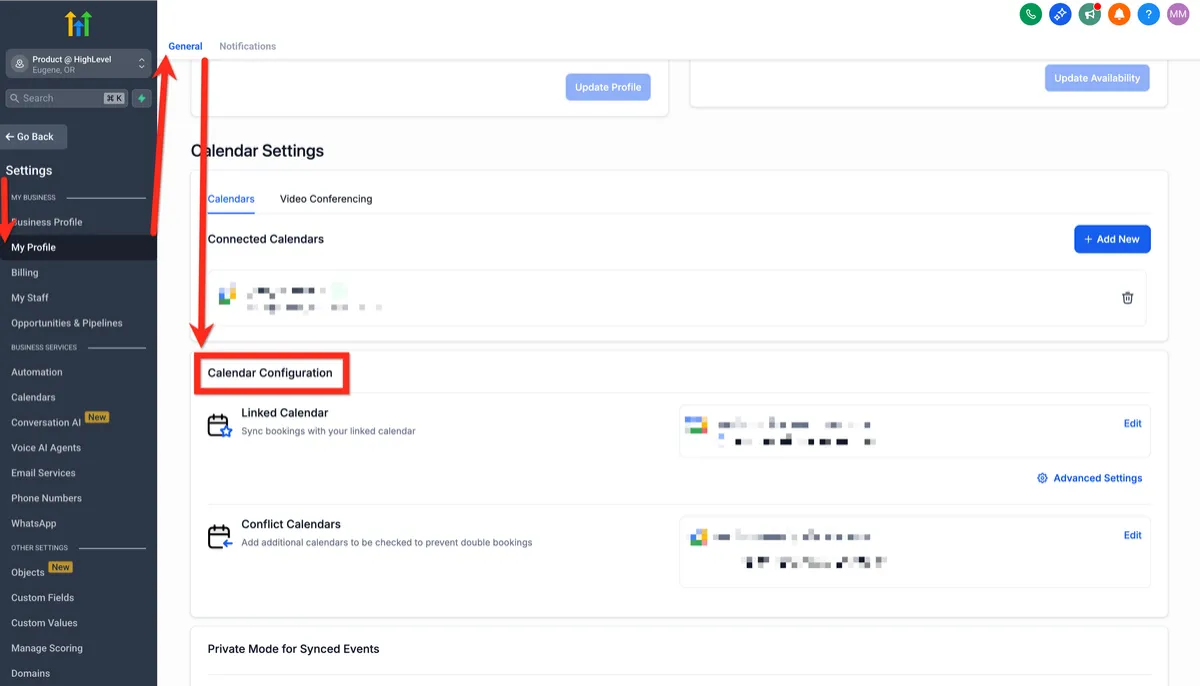
Step 3b: Edit Primary Linked Calendar
Click "Edit" next to the primary linked calendar. On the linked calendar modal, select the 3rd-party calendar to add new events to. All new events created in the system will be added to your linked calendar and all events created in the linked calendar will be synced to the system.
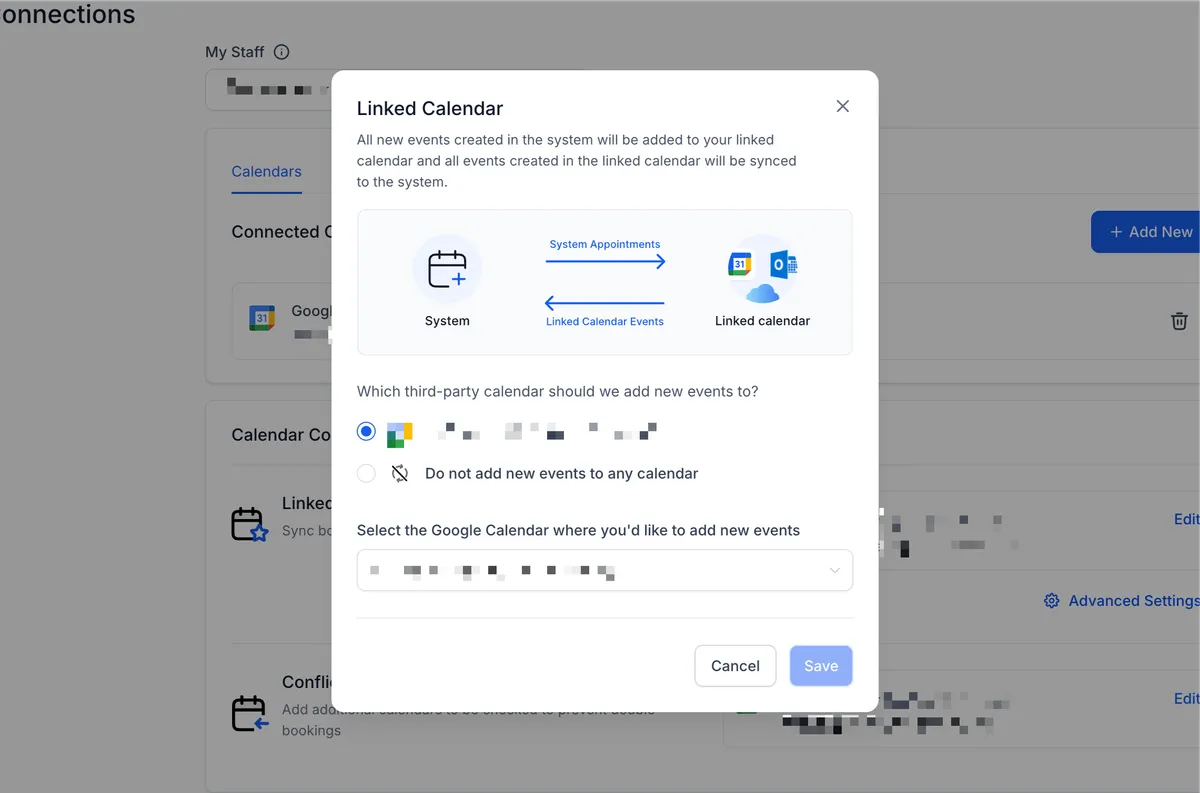
Step 3c: Edit Conflict Calendars
Click "edit next to the conflict calendars. Select one or more options such as holidays in the United States, your calendar, and other team members calendars.
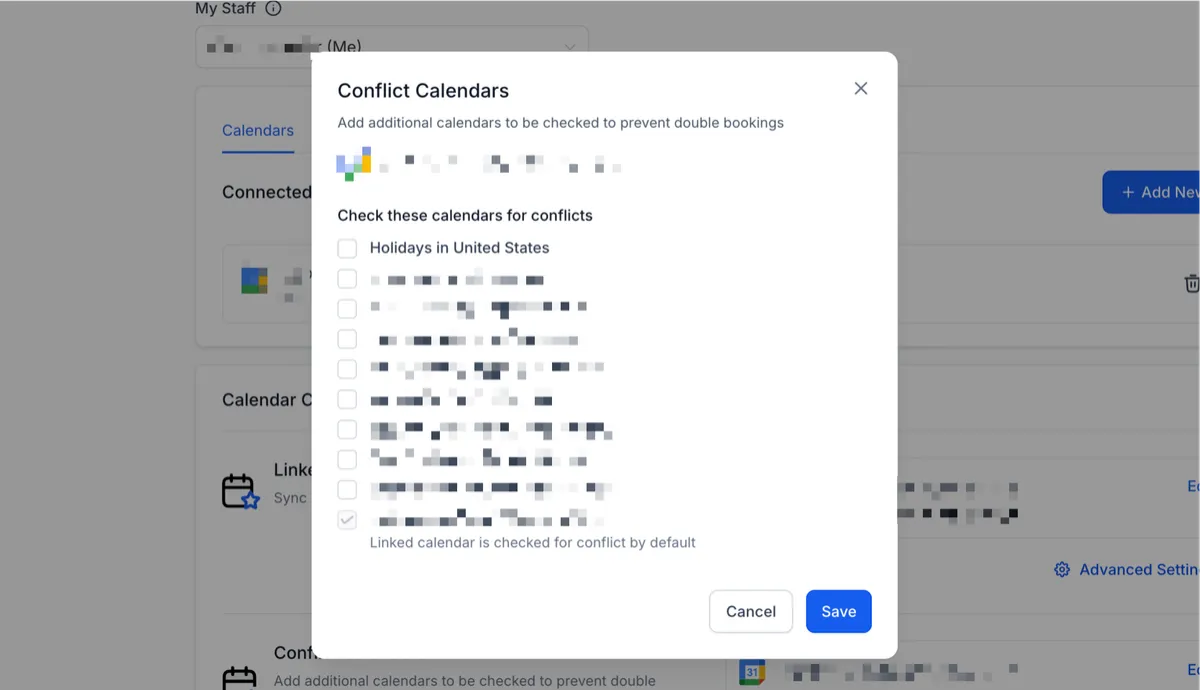
Steps to Connect Outlook Calendar
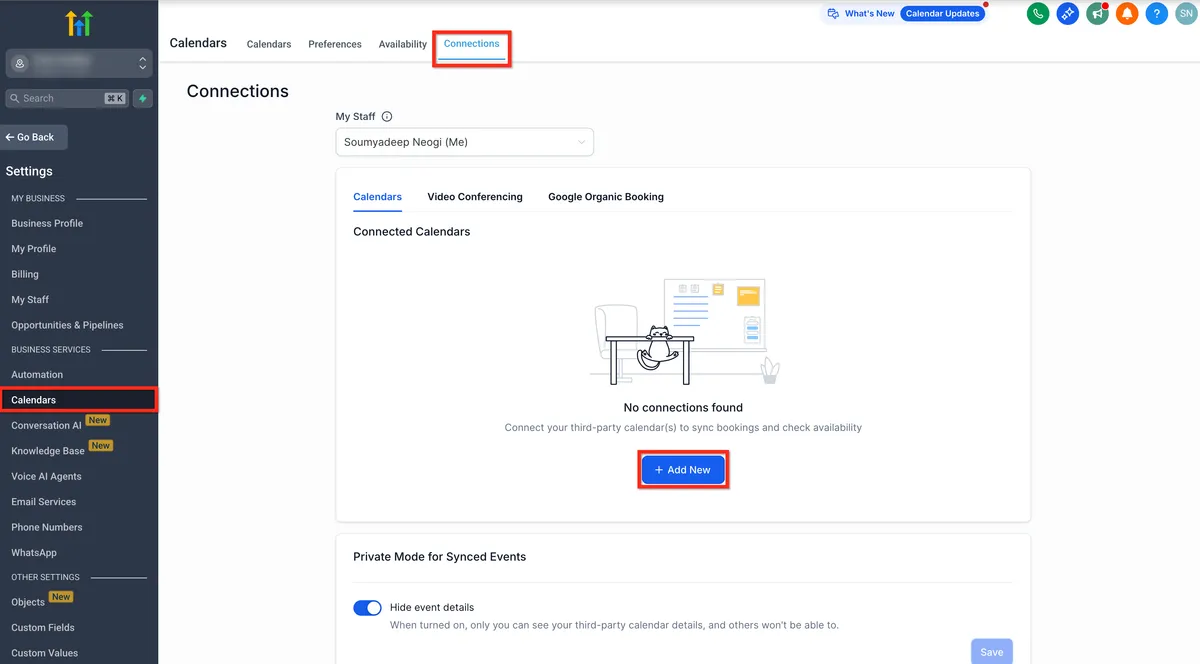
Step 1: Navigate to Calendar Connections
i. Select Calendars
ii. Click on the Connections tab and then + Add New button to add a new calendar.
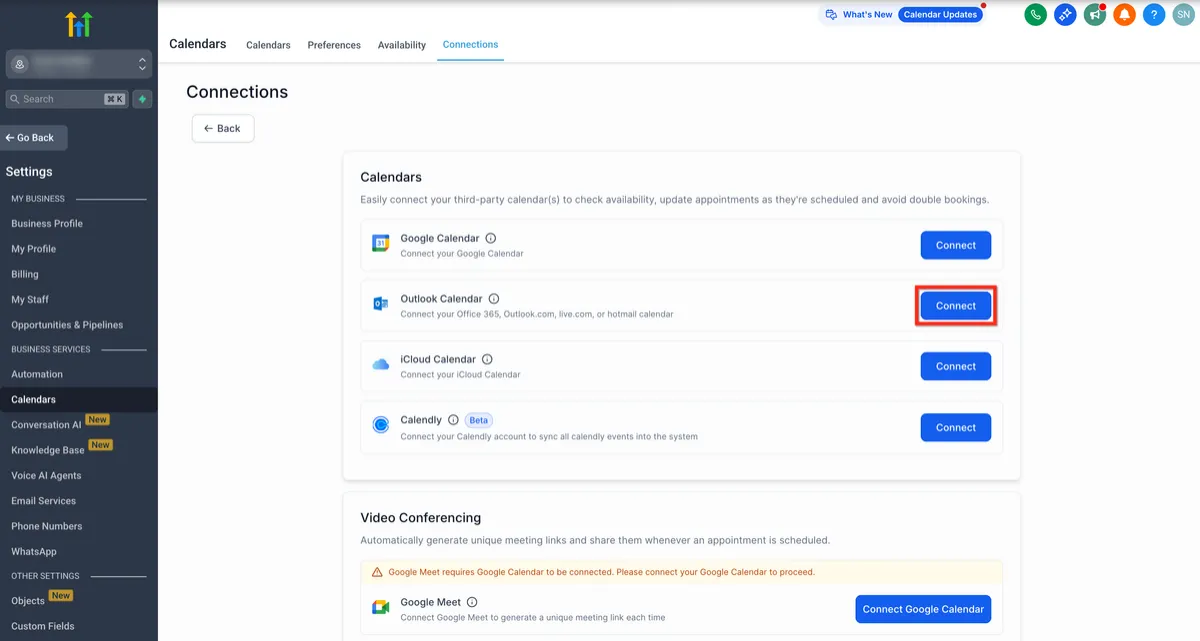
Step 2: Authenticate with Outlook
i. From the Connections page, click on the Connect button beside Outlook Calendar.
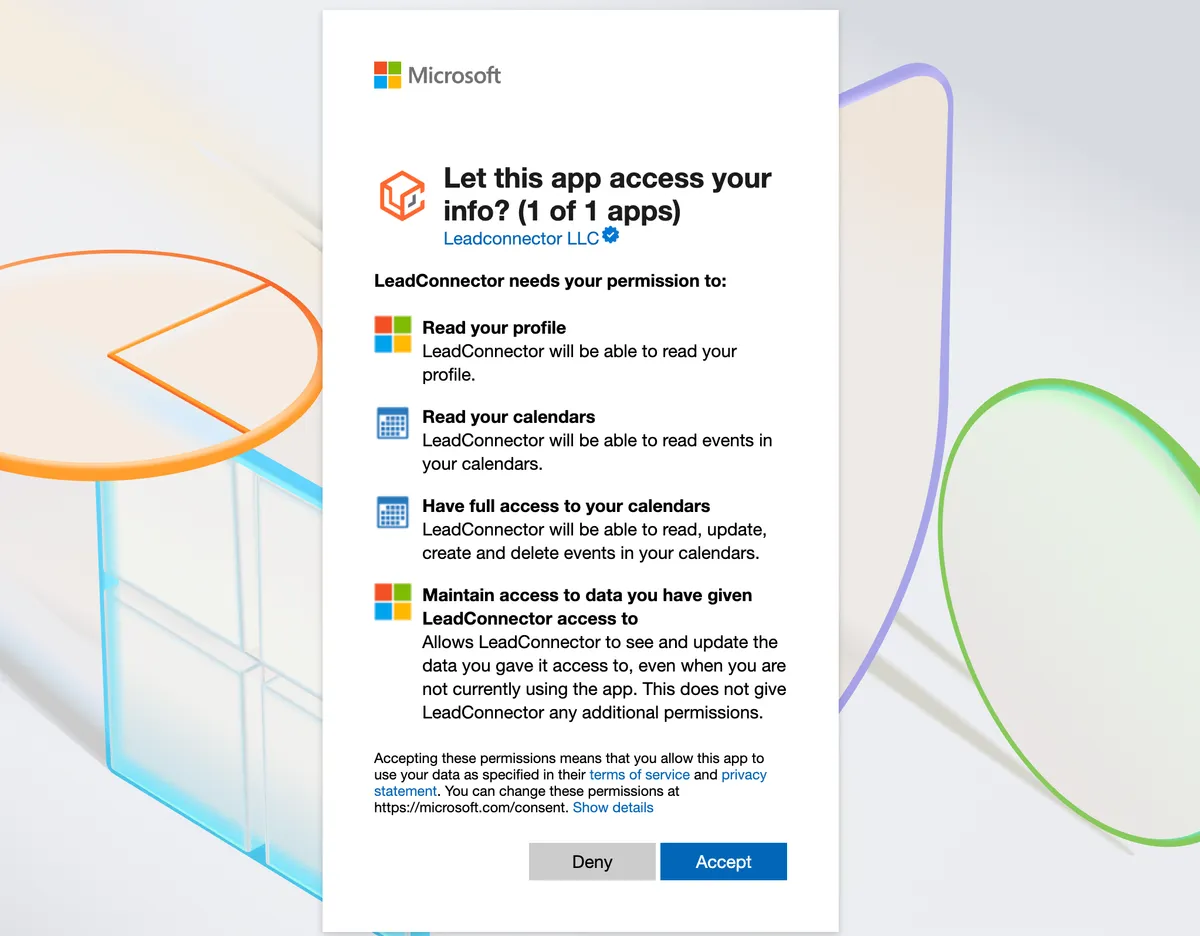
i. Sign in to your Outlook Account.
ii. Accept the necessary permissions to complete the authentication process.
Supported: Microsoft 365 / Exchange Online accounts.
Not Supported: Stand-alone or on-premises Microsoft Exchange servers.
Steps to Connect Calendly Calendar
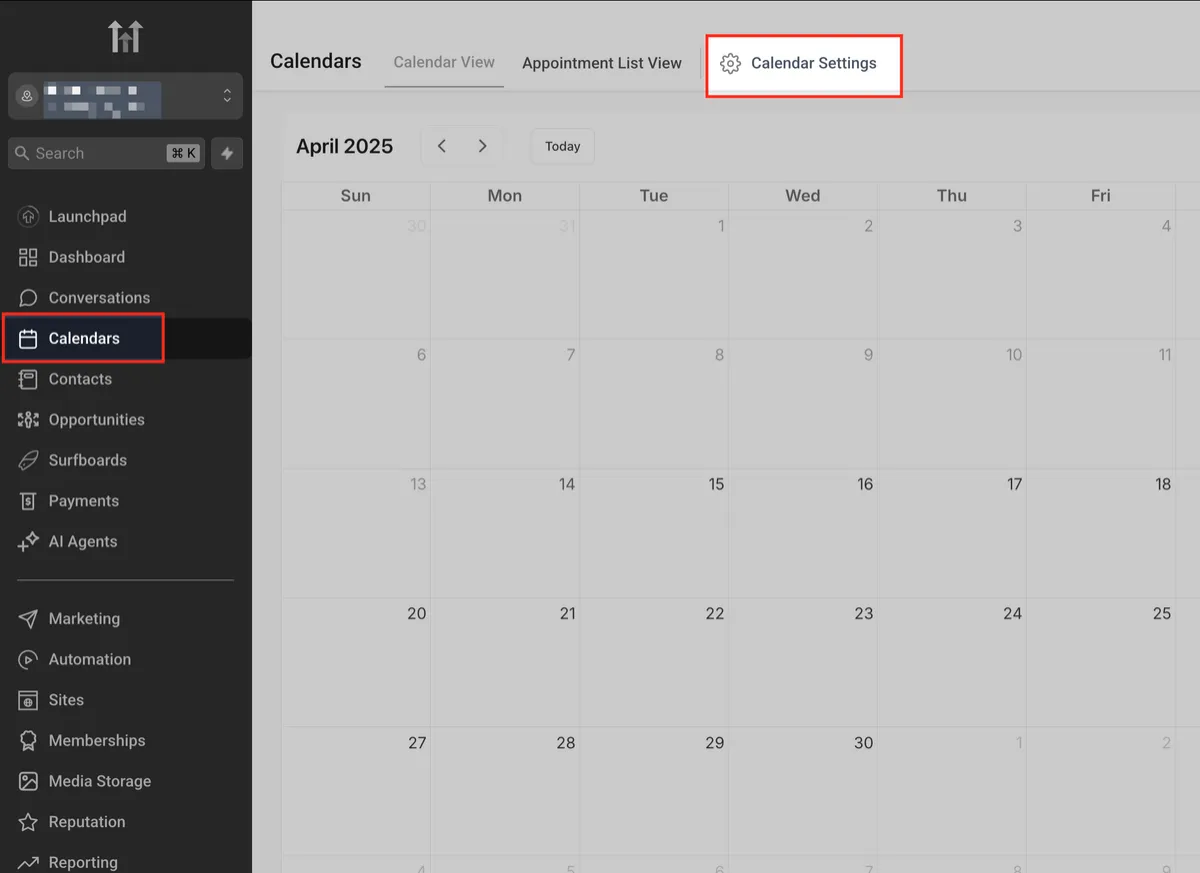
Access Calendar Settings
Navigate to the Calendars section in the left-hand menu, then click on Calendar Settings in the top-right corner. This is where you’ll manage all calendar connections, including Calendly.
Go to Calendars > Calendar Settings >
Open Connections Tab
Click on the Connections tab at the top to view and manage all integrated calendar accounts. This is where you’ll add, edit, or remove third-party calendars like Calendly.
Add New Integration
Click the + Add New button to start a new calendar connection. This is where you’ll initiate the process to connect your Calendly account with HighLevel.
Select Calendly Option
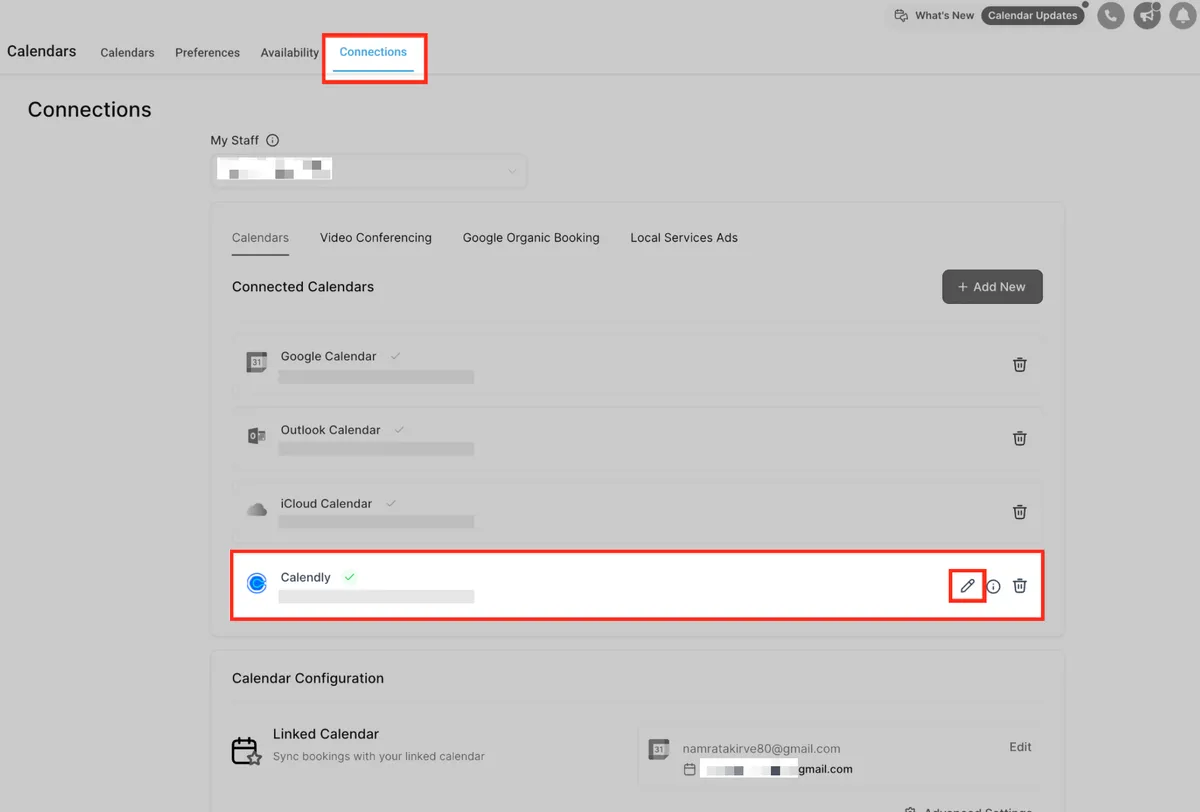
Find Calendly in the list of calendar providers and click Connect. This begins the authorization process to sync your Calendly events with HighLevel.
Log Into Calendly
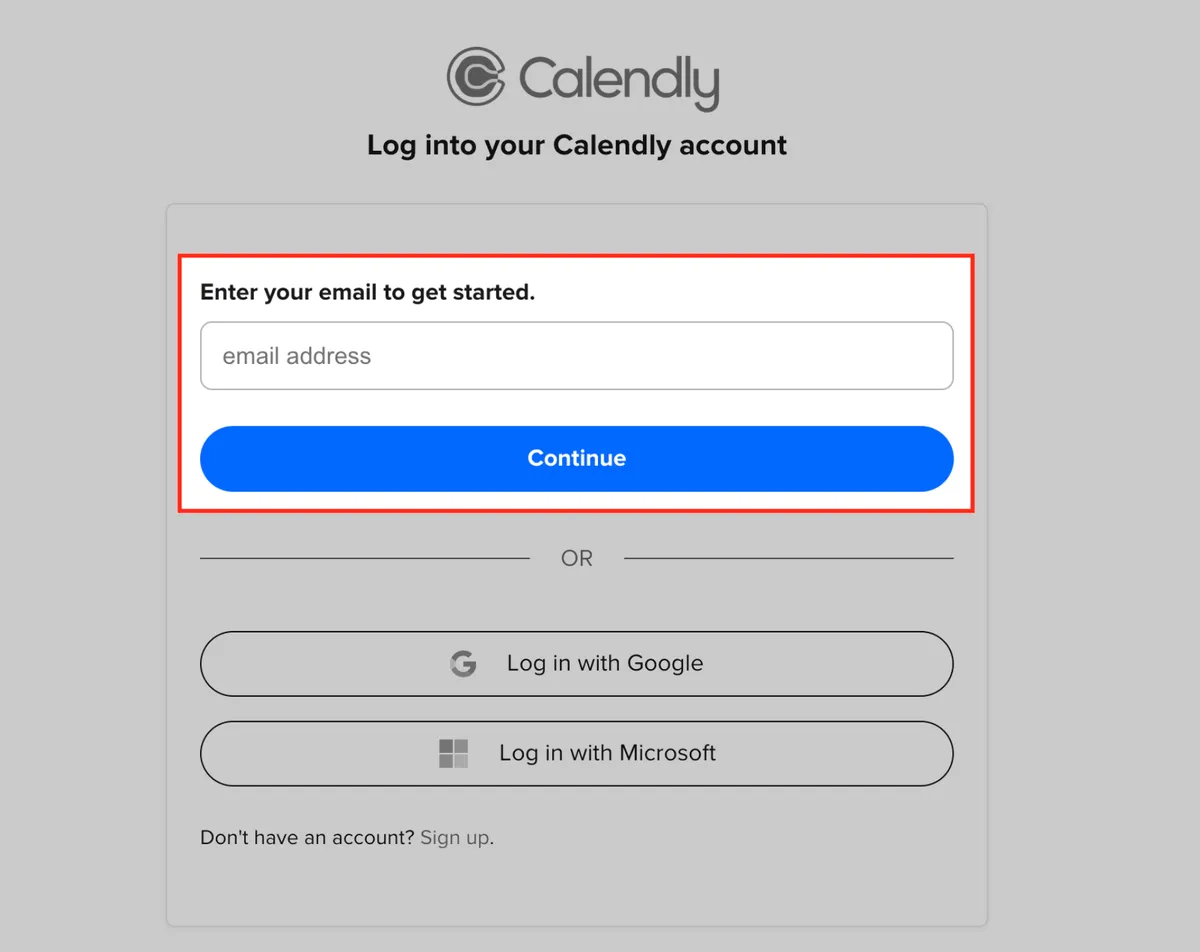
Complete the authentication process by logging into your Calendly account and granting access. Enter the email address associated with your Calendly account and click Continue. You can also log in using your Google or Microsoft credentials if linked.
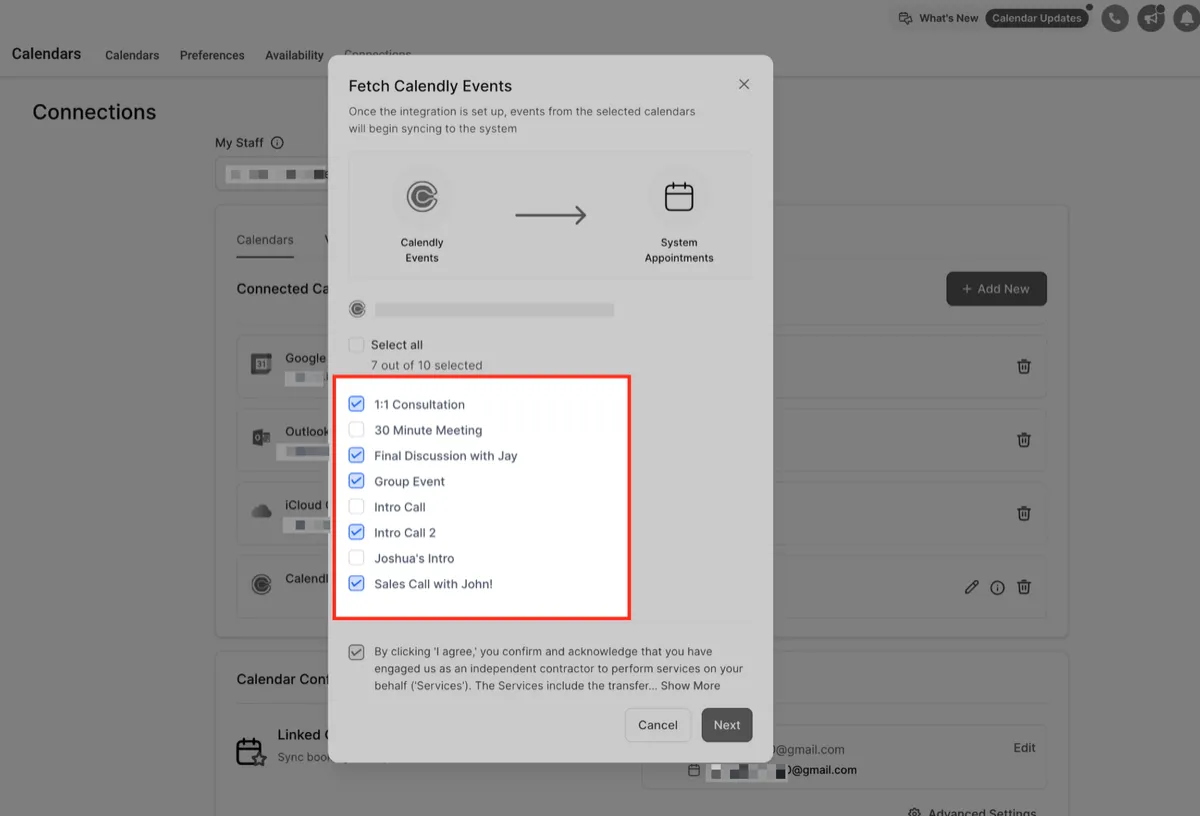
Choose Calendly Calendars
Select the Calendly calendars you want to sync into HighLevel. Only events from these selected calendars will be pulled into your system as appointments.
Approve Sync Access
Check the consent box to allow HighLevel to fetch your Calendly events and related details. Then click Save to complete the sync setup.
We automatically import both upcoming events and past events created within the last 180 days at the time of connecting your Calendly account.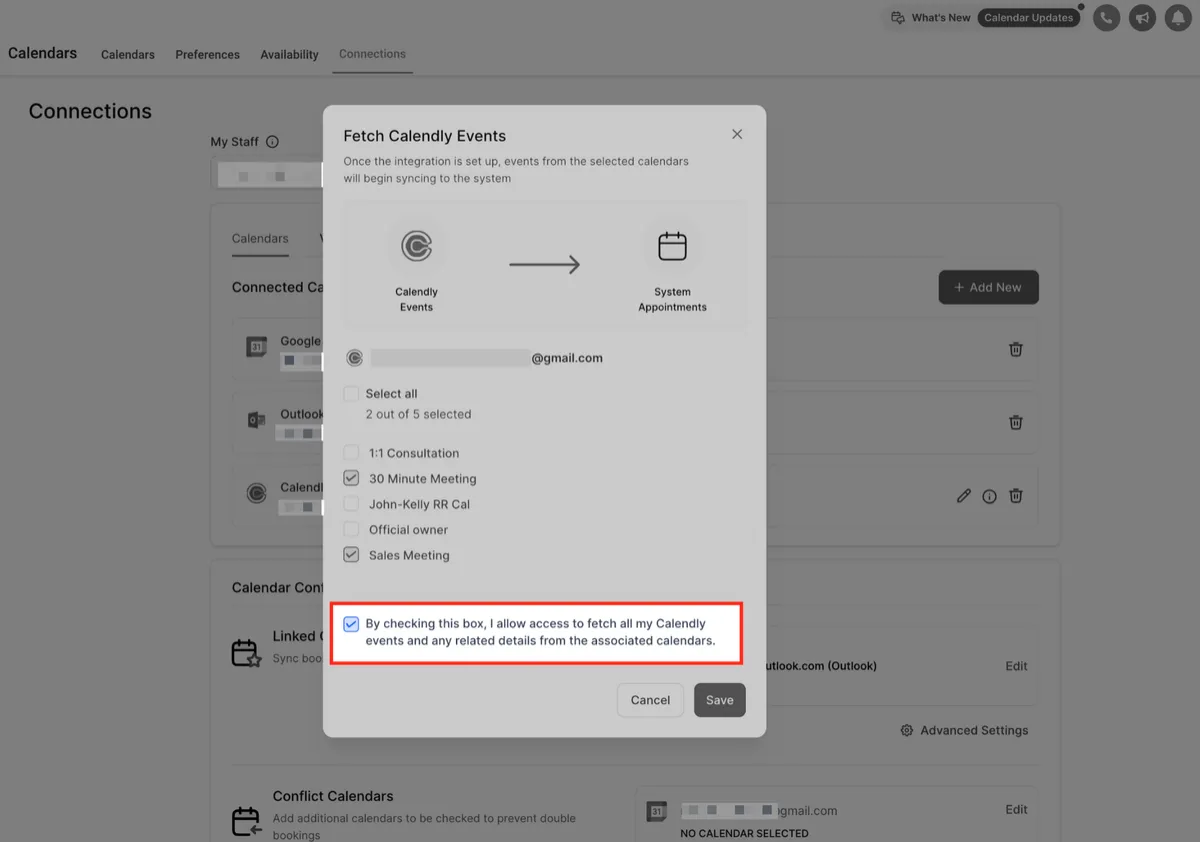
Copyright © 2026 by Dragonfly Reiki Marketplace. All Rights Reserved.