
Other
Managing Your Account Settings
Managing Your Account Settings
Your Account Settings allow you to manage the information associated with your Dragonfly account. From this page, you can update your login details, change your password, and manage your profile information.
Accessing Your Account Settings
To access your account settings:
Sign in to your Dragonfly account.
Click Practitioner Login in the top navigation menu.
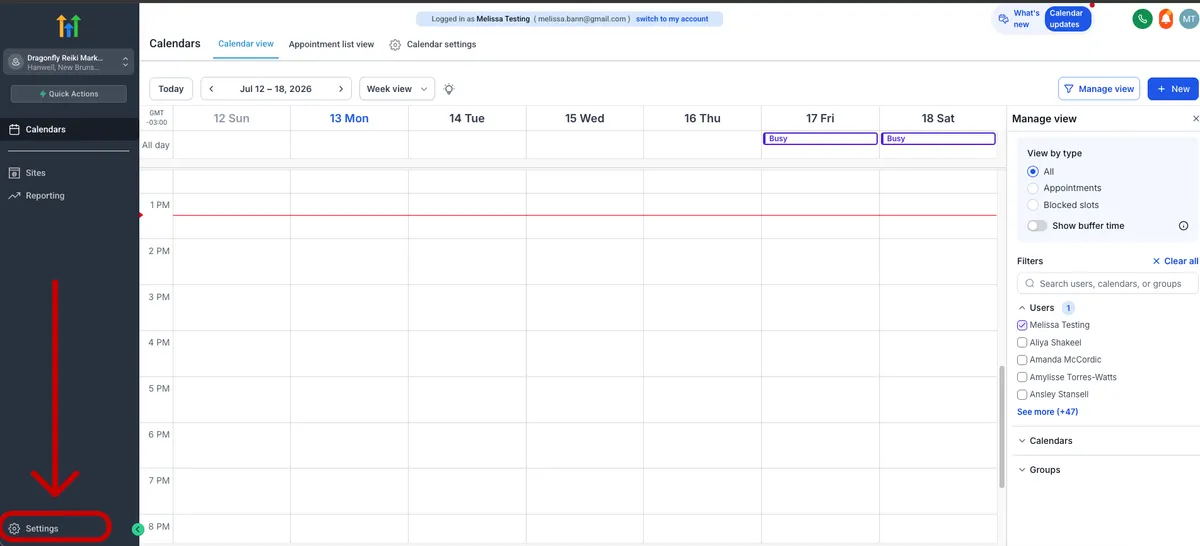
From the left-hand menu, select Settings.
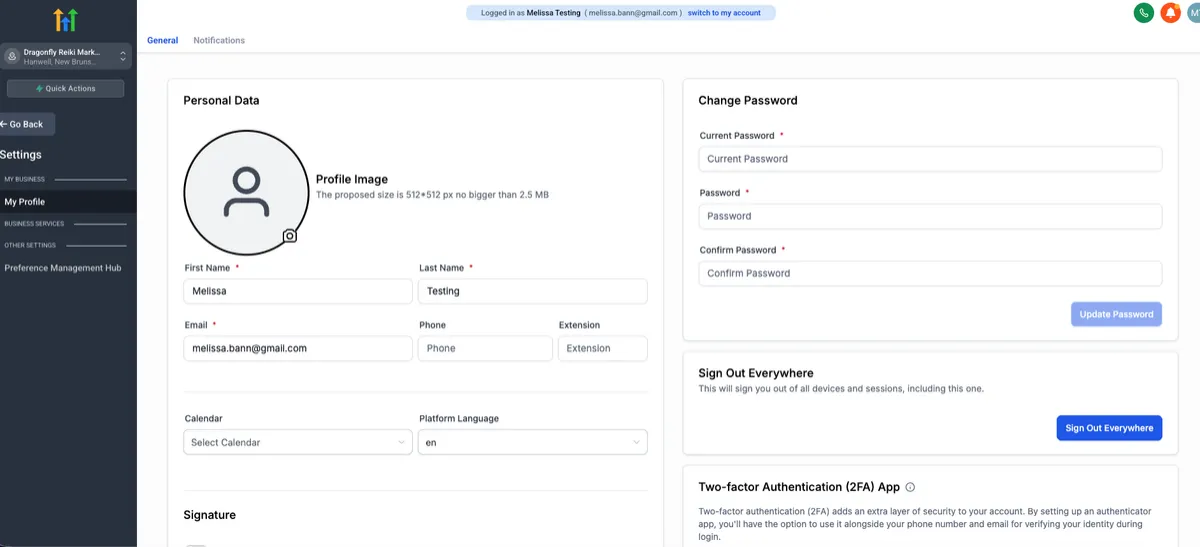
You will be taken to the My Profile page.
Updating Your Profile Image
From the My Profile page, you can upload or replace your profile image.
Please note: This image is used for your Dragonfly account only. Updating it here does not update the profile photo shown on your Practitioner Profile or your booking calendars. If you would like to update those images, please refer to the appropriate support articles.
Changing Your Login Email
You can also update the email address associated with your Dragonfly account.
This is the email address you use to:
Sign in to your Dragonfly account.
Receive booking notifications and appointment details.
Receive other account-related emails.
If you change this email address, be sure to use your new email the next time you sign in.
Changing Your Password
To update your password:
Enter your current password.
Enter your new password.
Confirm your new password.
Save your changes.
If you've forgotten your password and can't sign in, use the Forgot Password? link on the Practitioner Login page to reset it.
Final Note
Keeping your account information up to date helps ensure you receive booking notifications and can access your Dragonfly account without interruption. If you experience any difficulties updating your settings, the Dragonfly team is happy to assist.
Steps to Connect Google Calendar
Step 1: Navigate to Calendar Connections
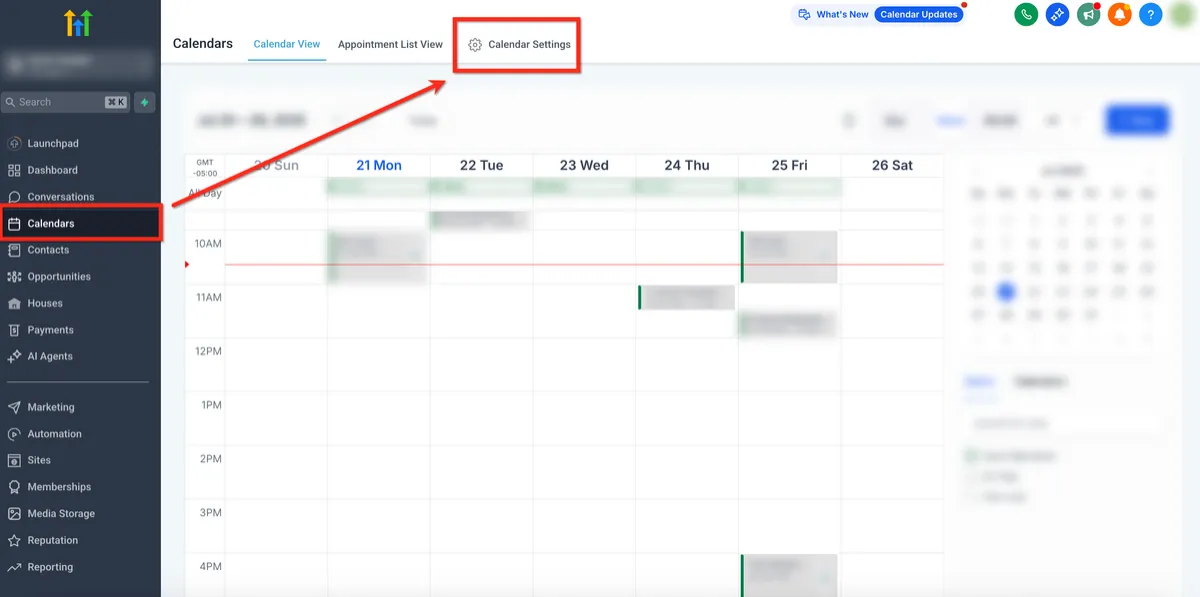
i. Once logged in select Calendars then click Calendar Settings in the upper right corner
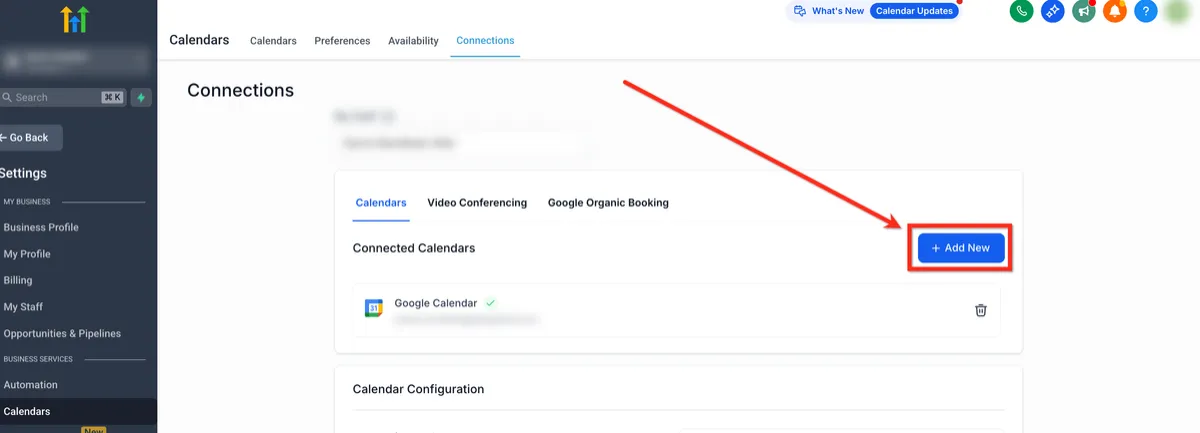
ii. Click on the Connections tab in the upper navigation ribbon and then + Add New button to add a new calendar.
Step 2: Authenticate with Google
i. From the Connections page, click on the Connect button beside Google Calendar.
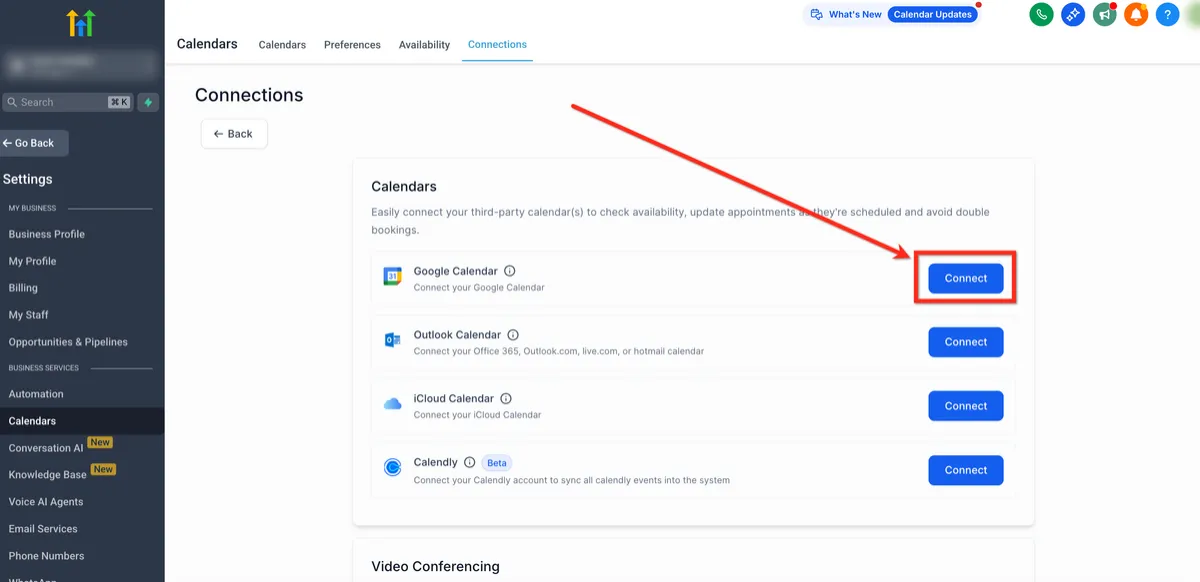
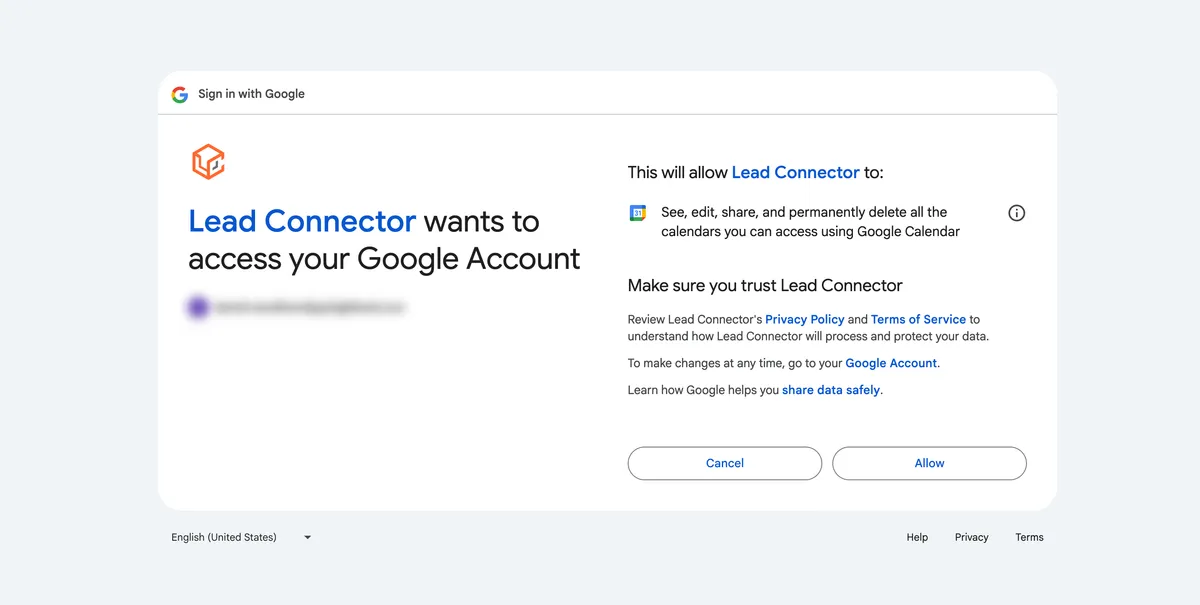
ii. Select the Google account you want to use.
iii. Accept all requested permissions, including: Calendar (read/write), Profile and Email access.
Steps to Connect iCloud Calendar
Step 1: Obtain App-specific Password From Apple
Before connecting your iCloud calendar, you'll need to obtain your app-specific password from Apple. This unique password is distinct from your regular Apple account password. Apple mandates the use of an app-specific password, in addition to enabling two-factor authentication, when connecting to third-party applications.
Step 1a: Sign Into Apple
Sign in to https://appleid.apple.com/
Step 1b: Enable 2F Auth
Enable two-factor authentication under the Security section if you haven't already done so.
If you skip enabling two-factor authentication at this point and run into trouble later, come back and enable it.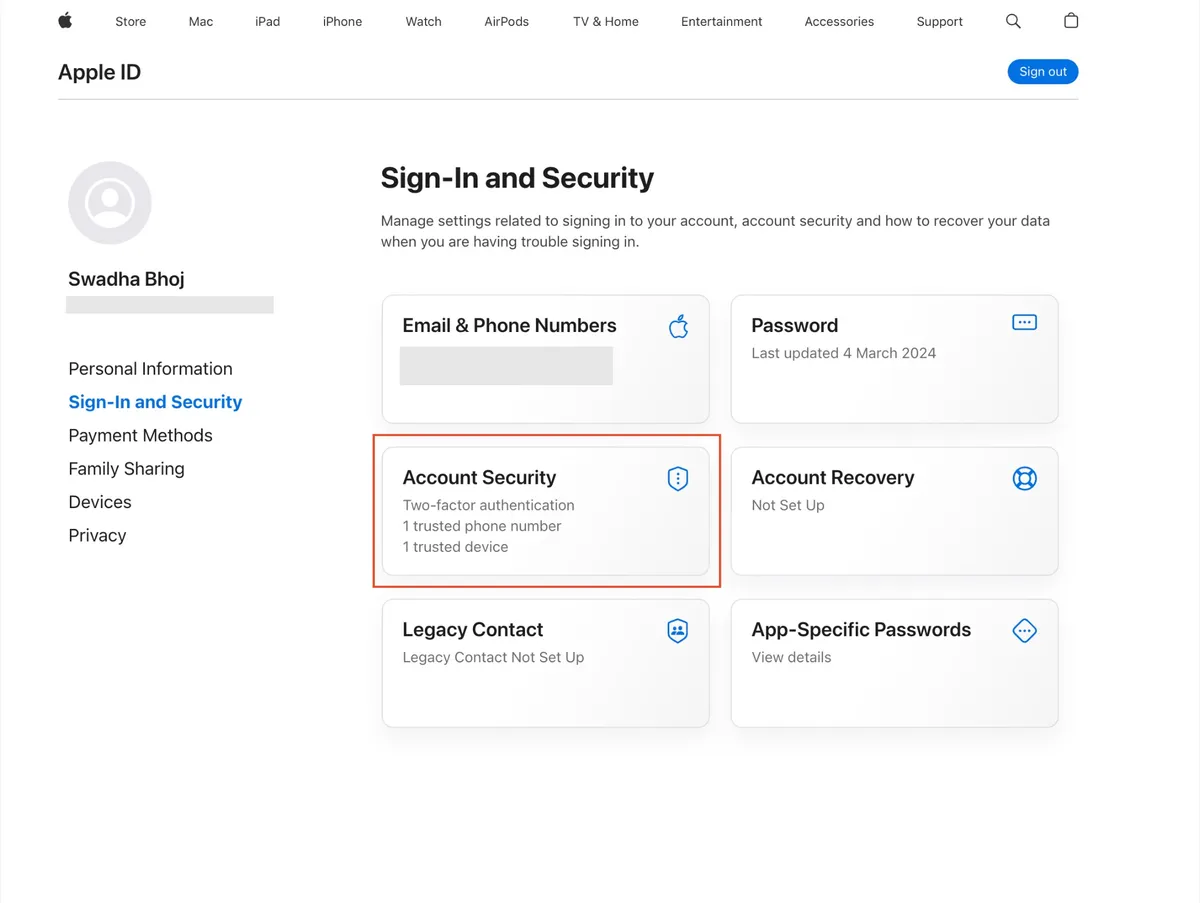
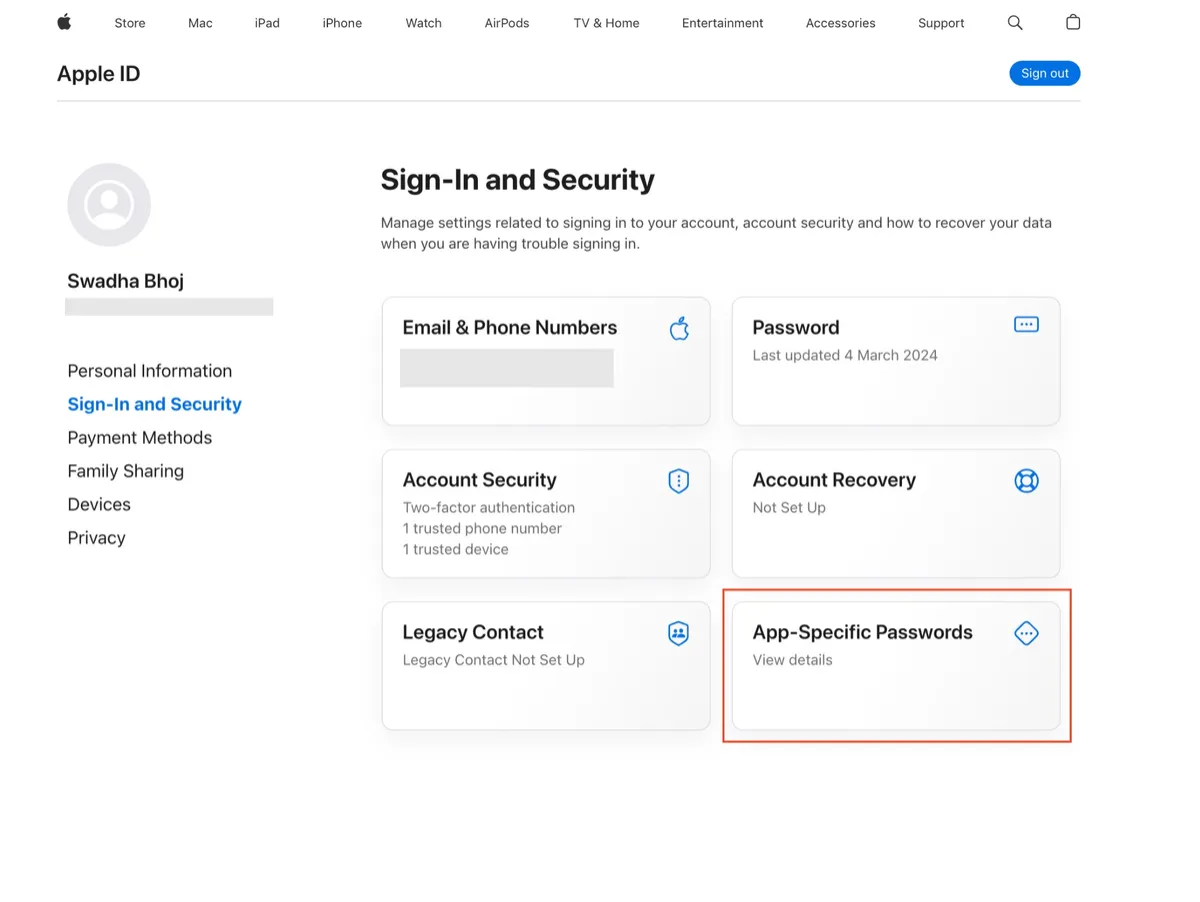
Step 1c: App-Specific Password
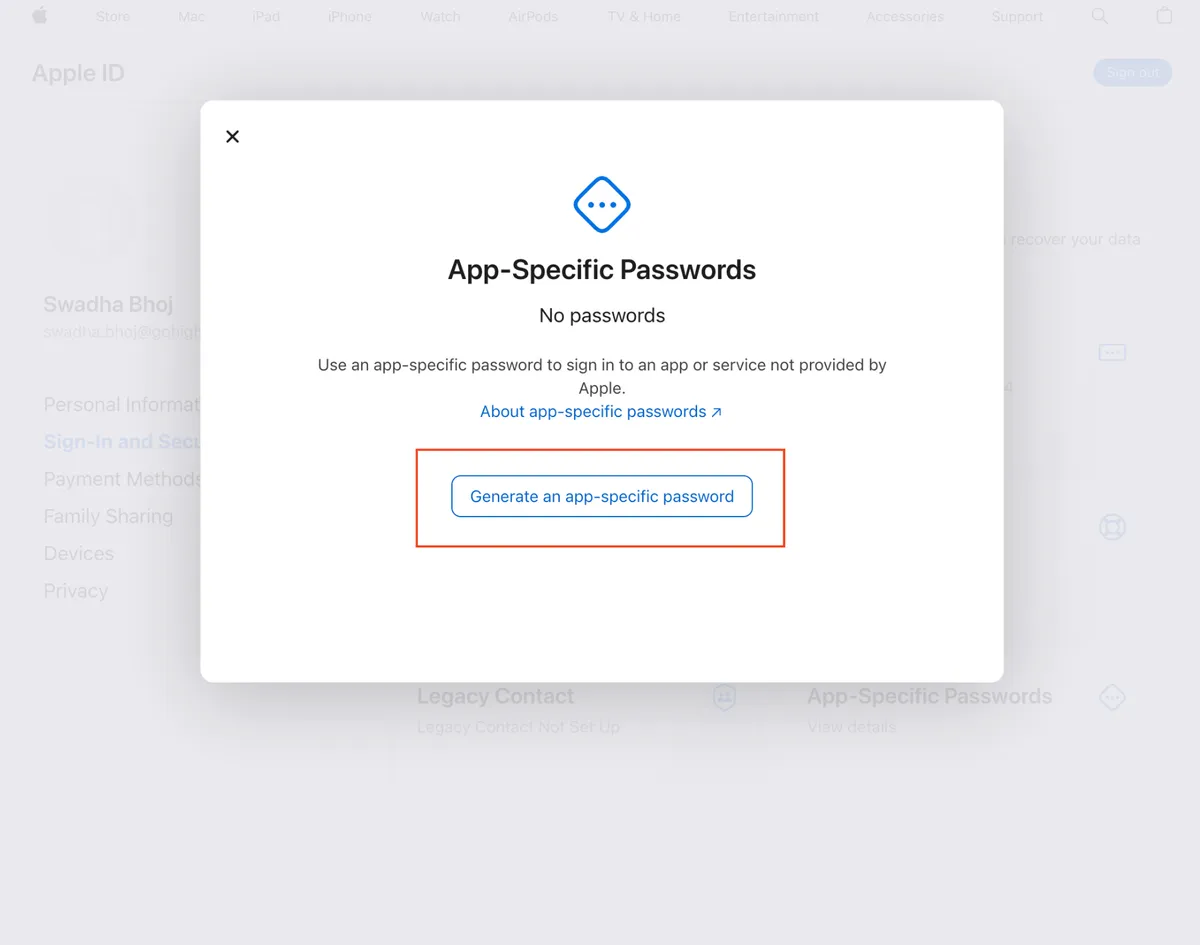
Click into the Sign-in and Security section and choose "App-Specific Password" then in the modal click "Generate an app-specific password".
Step 1d: Name The App-specific Password
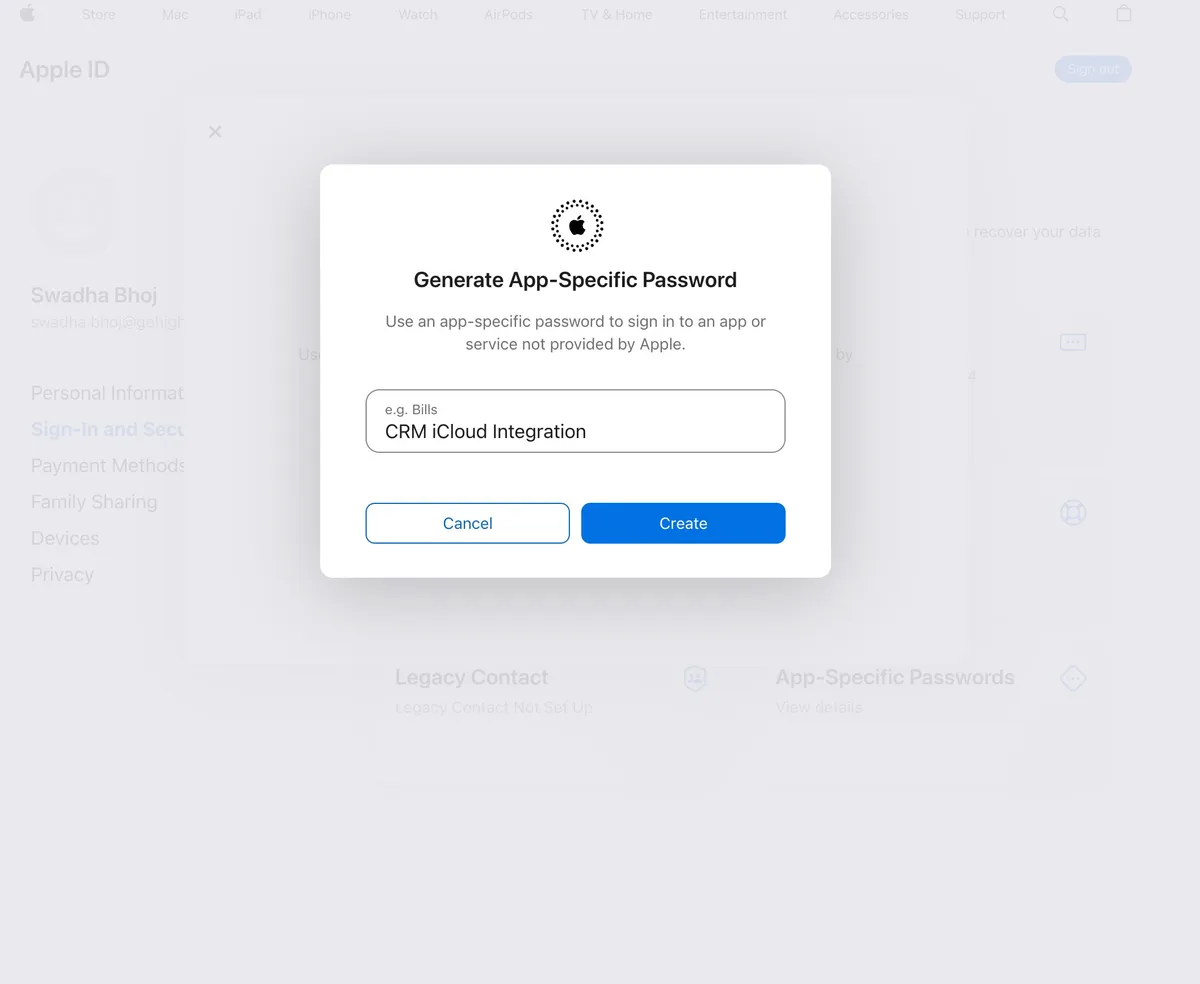
Enter a label for the password (for instance, 'CRM iCloud Integration') and click 'Create.'
Step 1e: Save The App-specific Password
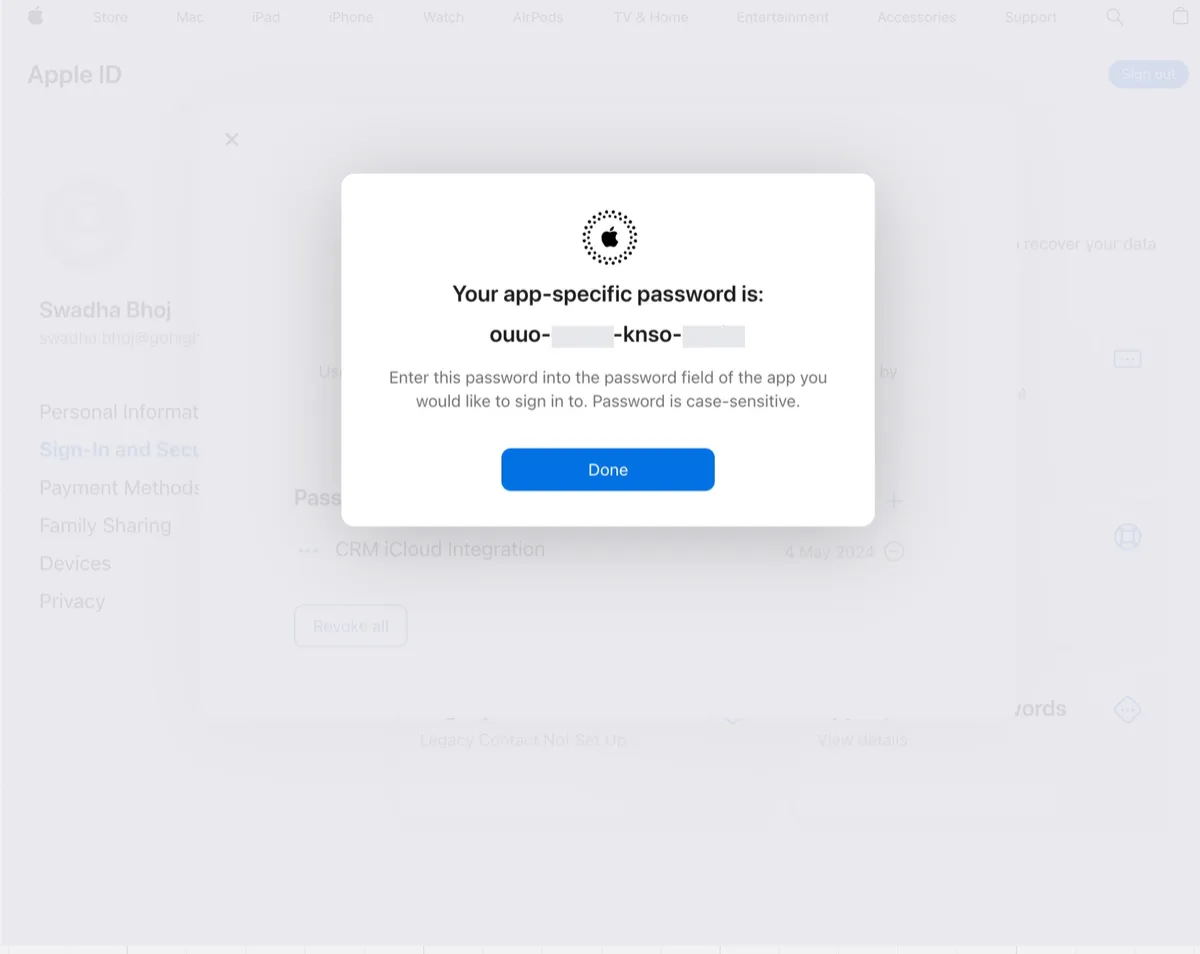
Copy and safely keep the generated app-specific password. This will be used when connecting your iCloud calendar in the next step.
Step 2: Connect Your iCloud Account to HighLevel
Using the app-specific password from Step 1, connect your iCloud account to HighLevel.
Step 2a: Add New Connected Calendar
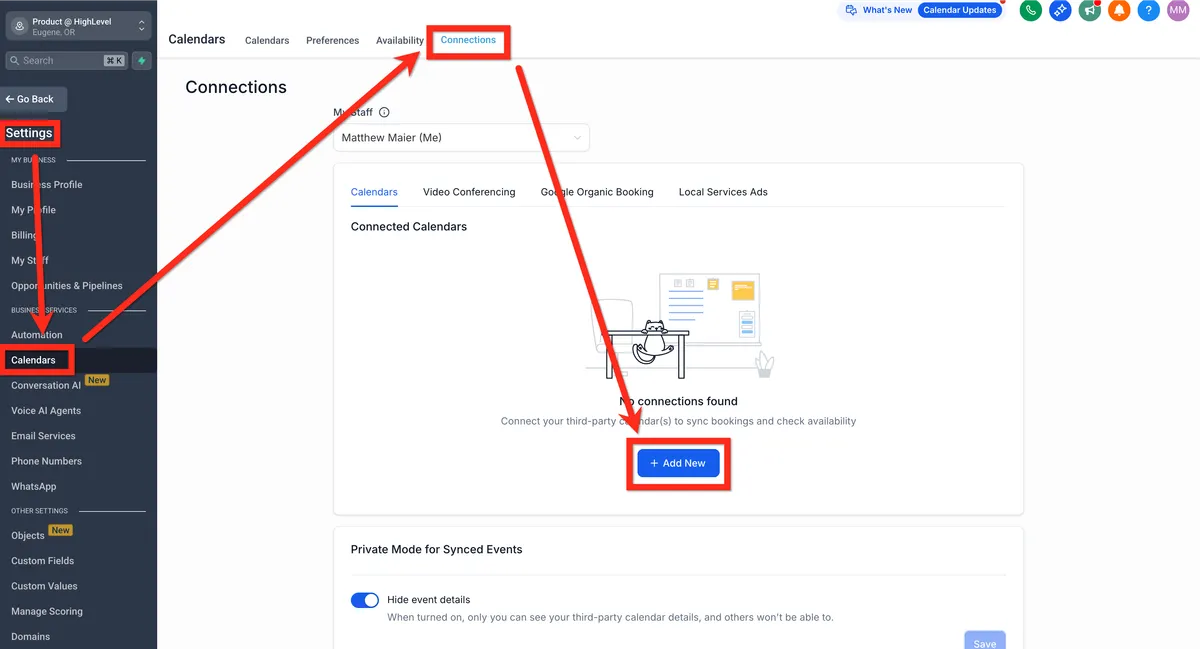
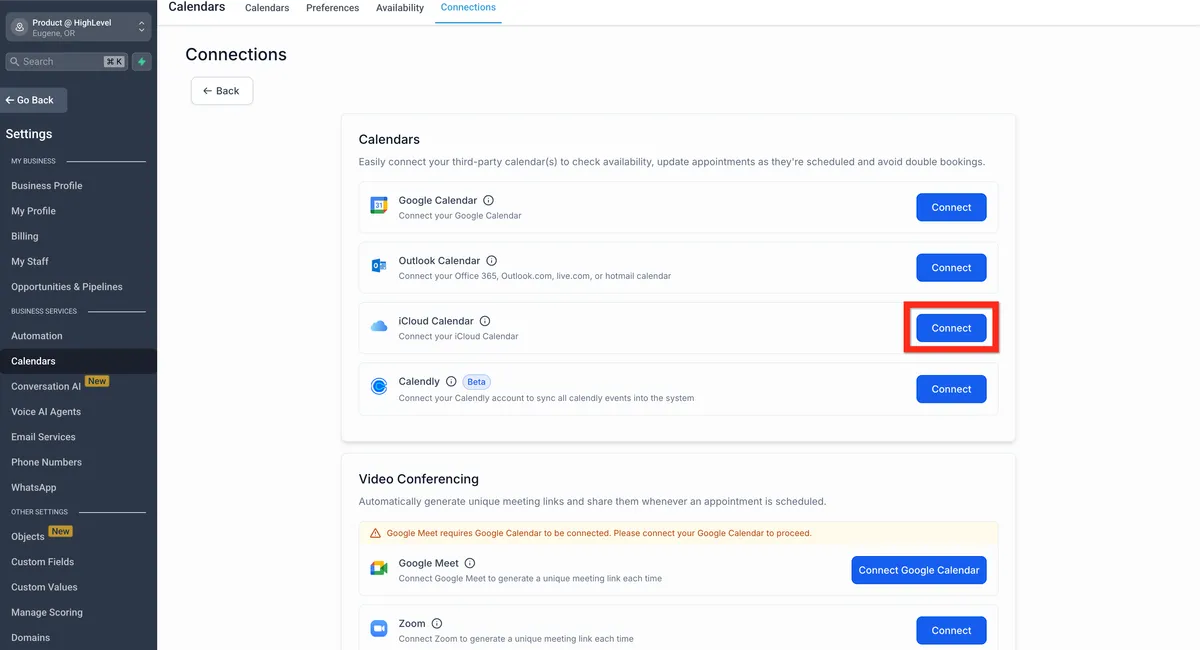
Navigate to subaccount > settings > calendars > connections and click "+ Add New".
Step 2b: Save Credentials
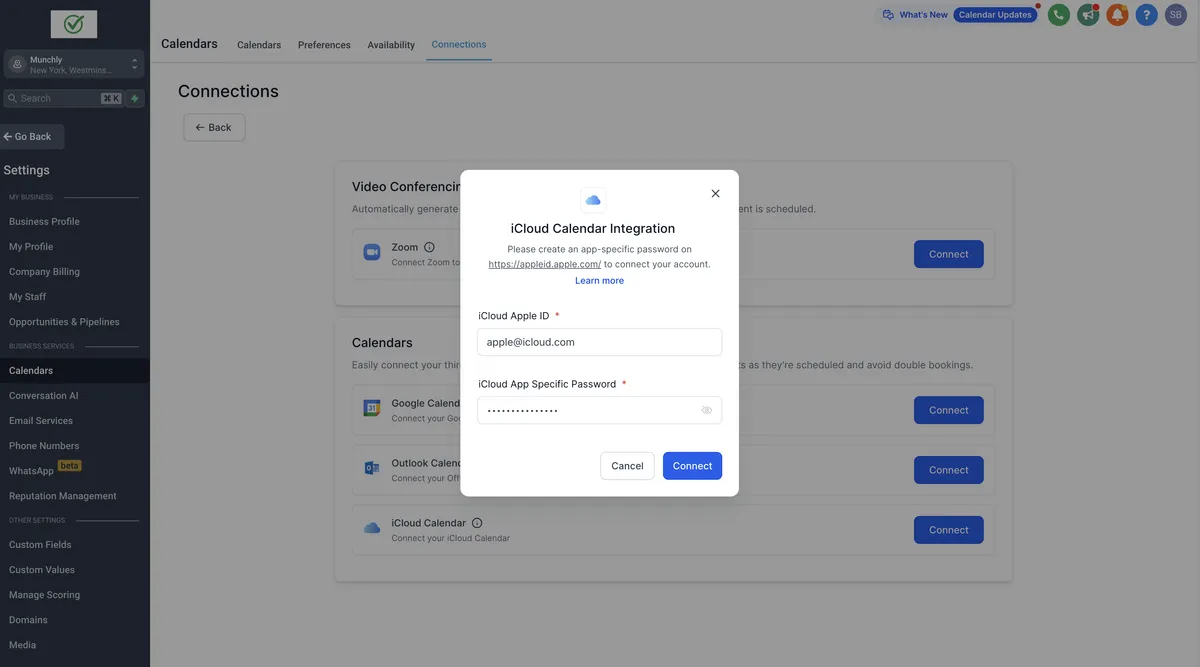
Click "Connect" in the iCloud Calendar widget, then enter your iCloud Apple ID and app-specific password from Step 1, then click "Connect".
Step 3: Configure Calendars
After connecting iCloud in step 2, you need to set your primary linked calendar and "blocking" calendars.
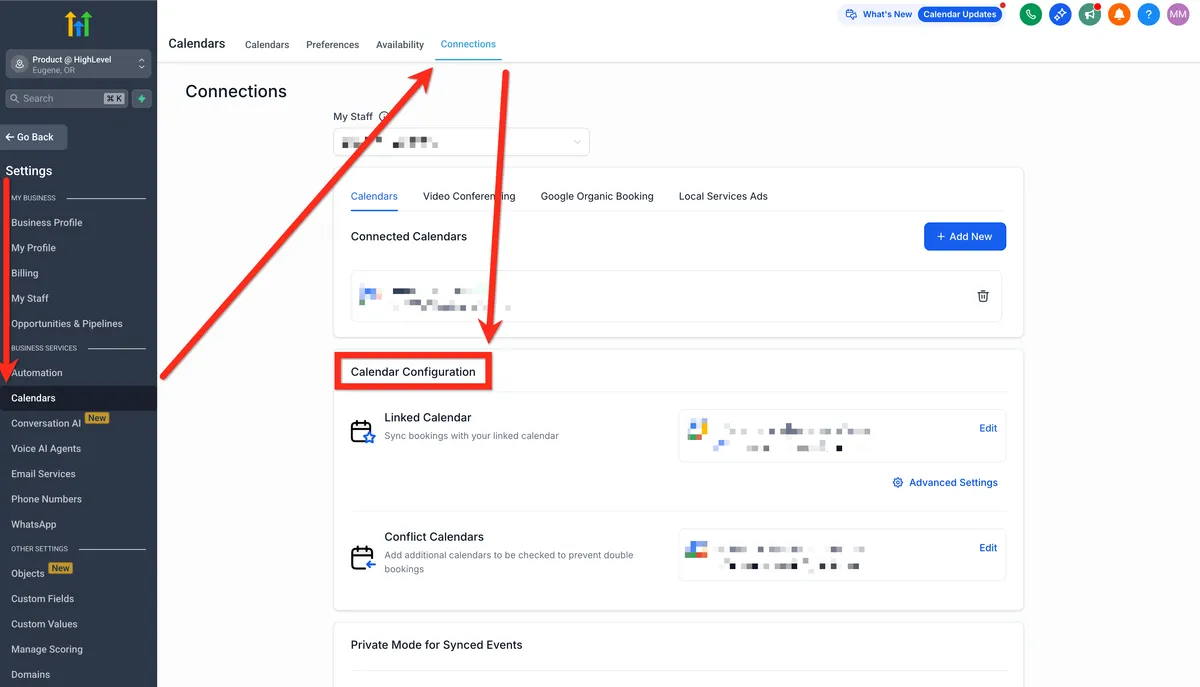
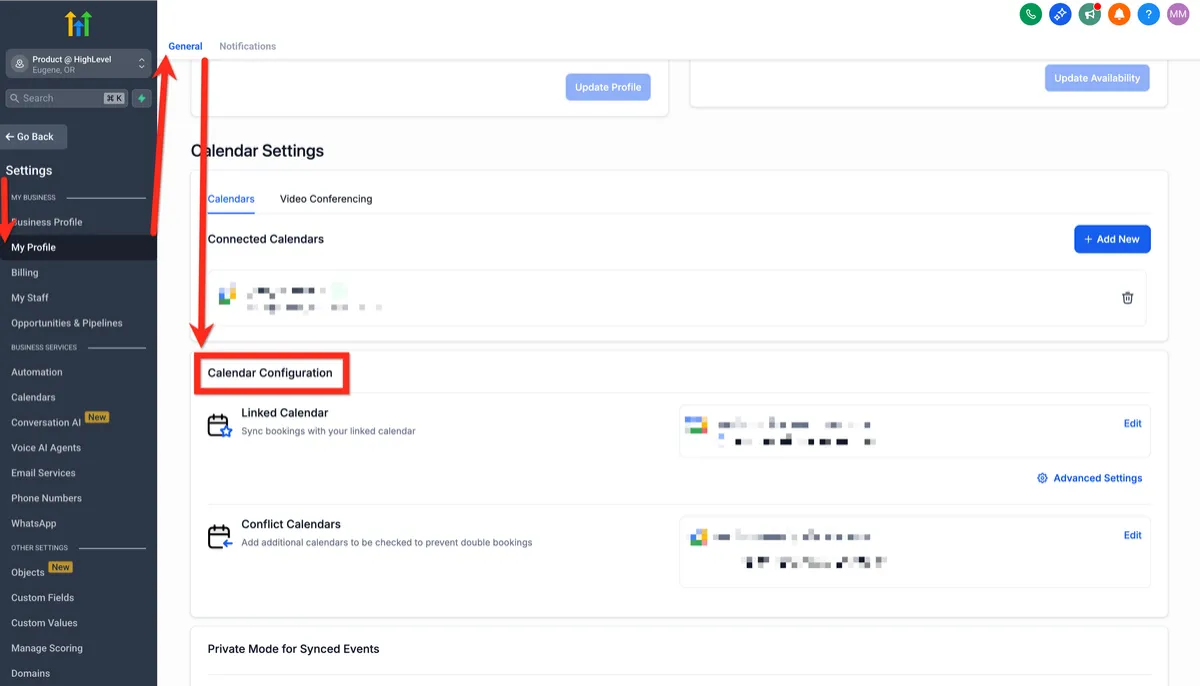
If you have not connected a 3rd party calendar then this Calendar Configuration panel will not appear. So, if you don't see it, go back and connect another calendar.Step 3a: Calendar Configuration Panel
Navigate to subaccount > settings > My Profile > Calendar Configuration OR subaccount > settings > calendars > connections > calendar configuration (they take you to the same panel).
Step 3b: Edit Primary Linked Calendar
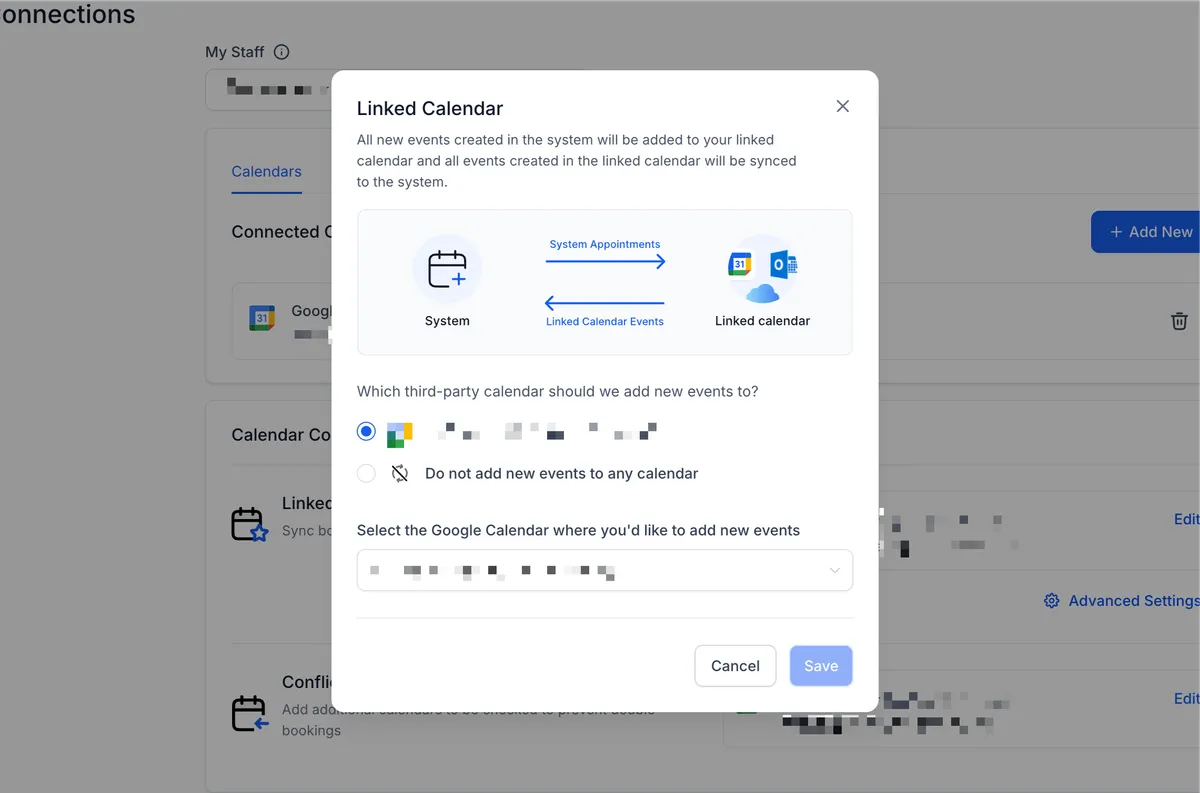
Click "Edit" next to the primary linked calendar. On the linked calendar modal, select the 3rd-party calendar to add new events to. All new events created in the system will be added to your linked calendar and all events created in the linked calendar will be synced to the system.
Step 3c: Edit Conflict Calendars
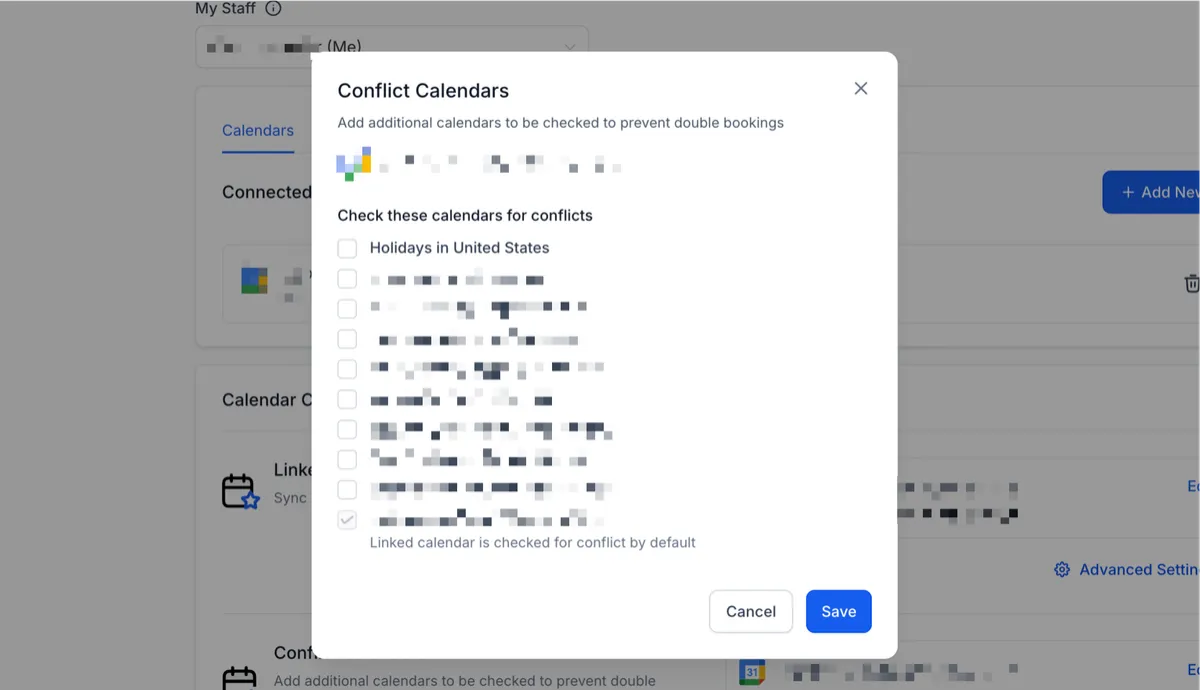
Click "edit next to the conflict calendars. Select one or more options such as holidays in the United States, your calendar, and other team members calendars.
Steps to Connect Outlook Calendar
Step 1: Navigate to Calendar Connections
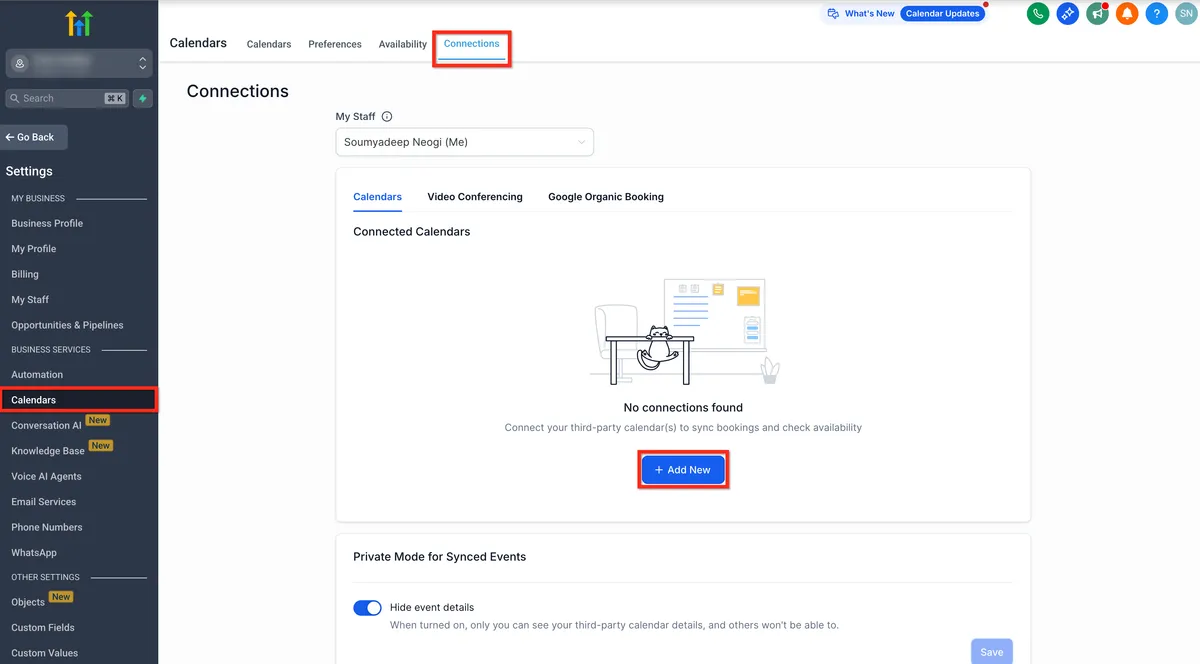
i. Select Calendars
ii. Click on the Connections tab and then + Add New button to add a new calendar.
Step 2: Authenticate with Outlook
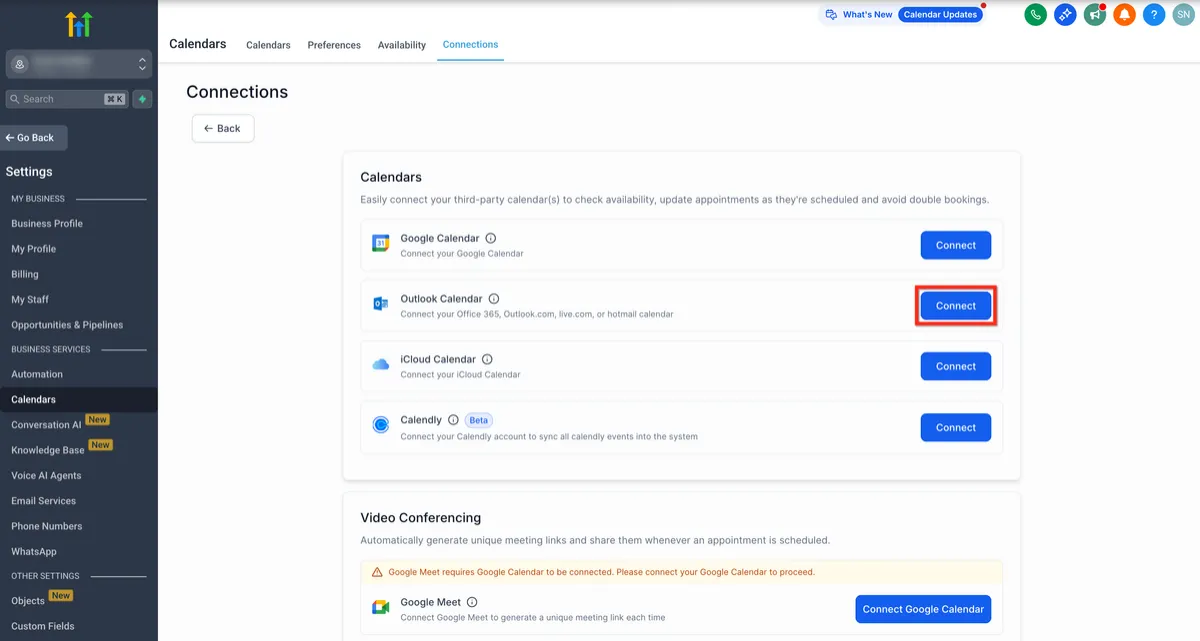
i. From the Connections page, click on the Connect button beside Outlook Calendar.
i. Sign in to your Outlook Account.
ii. Accept the necessary permissions to complete the authentication process.
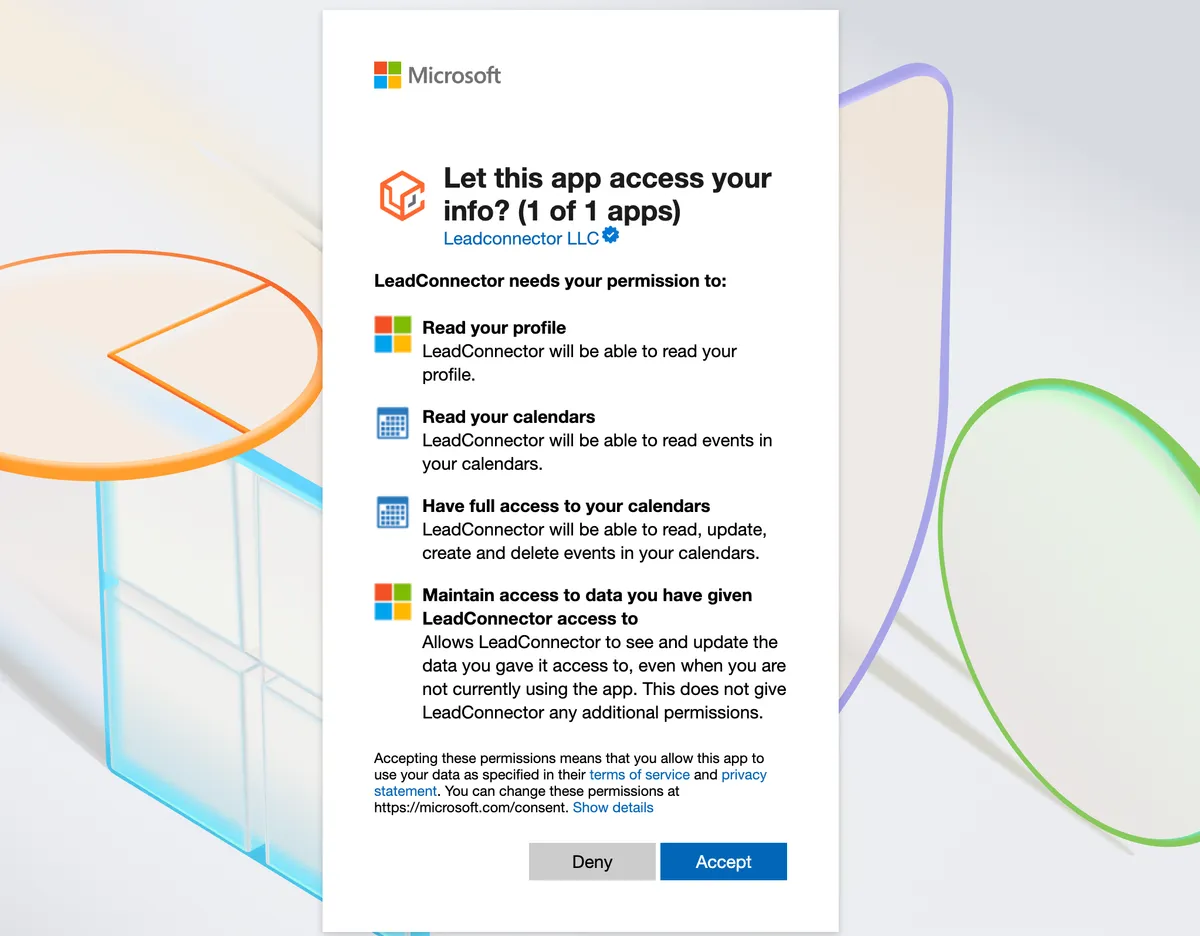
Supported: Microsoft 365 / Exchange Online accounts.
Not Supported: Stand-alone or on-premises Microsoft Exchange servers.
Steps to Connect Calendly Calendar
Access Calendar Settings
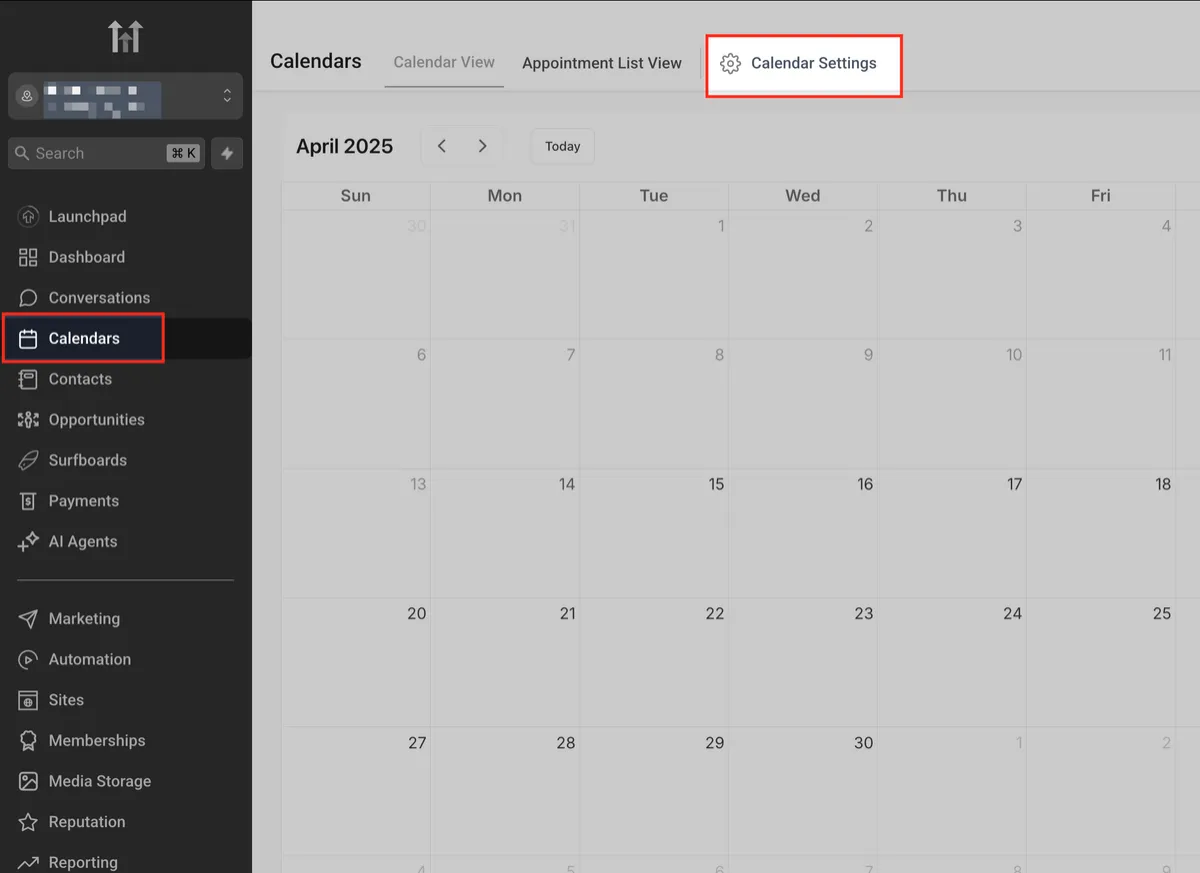
Navigate to the Calendars section in the left-hand menu, then click on Calendar Settings in the top-right corner. This is where you’ll manage all calendar connections, including Calendly.
Go to Calendars > Calendar Settings >
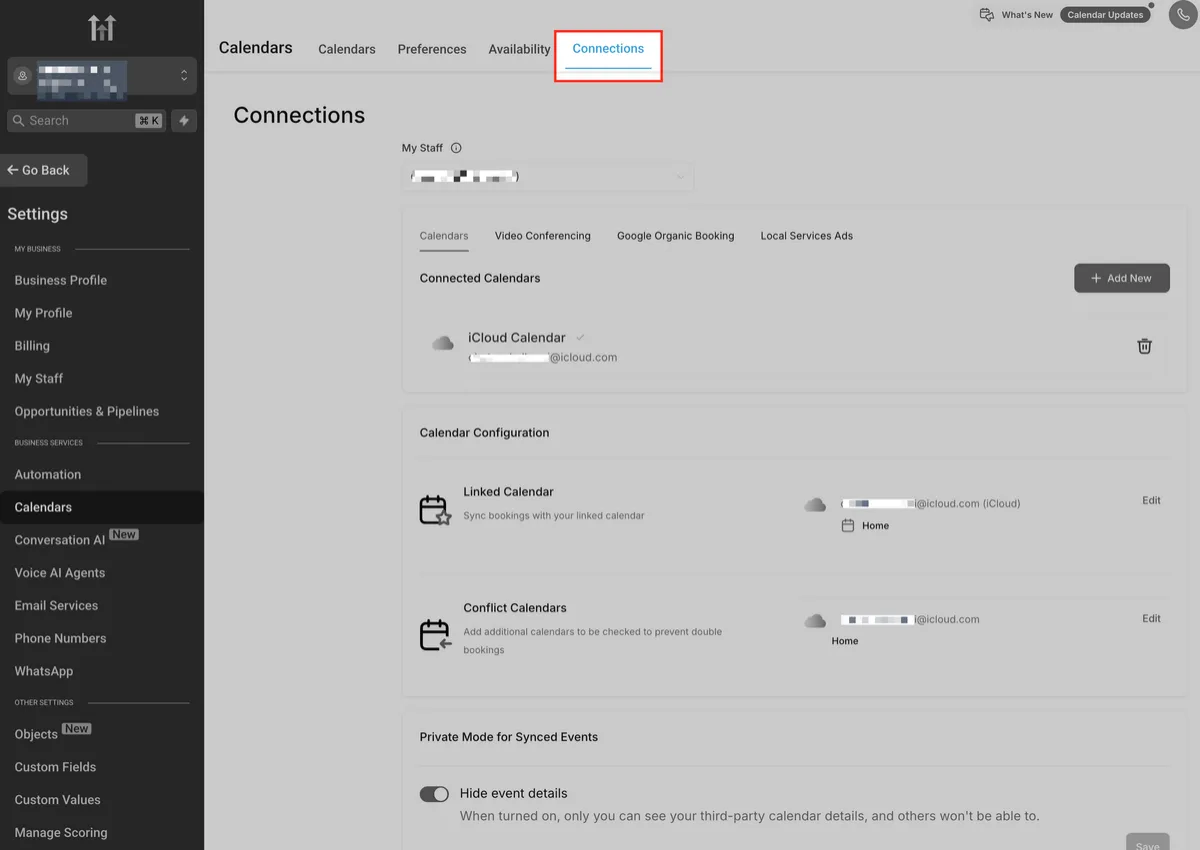
Open Connections Tab
Click on the Connections tab at the top to view and manage all integrated calendar accounts. This is where you’ll add, edit, or remove third-party calendars like Calendly.
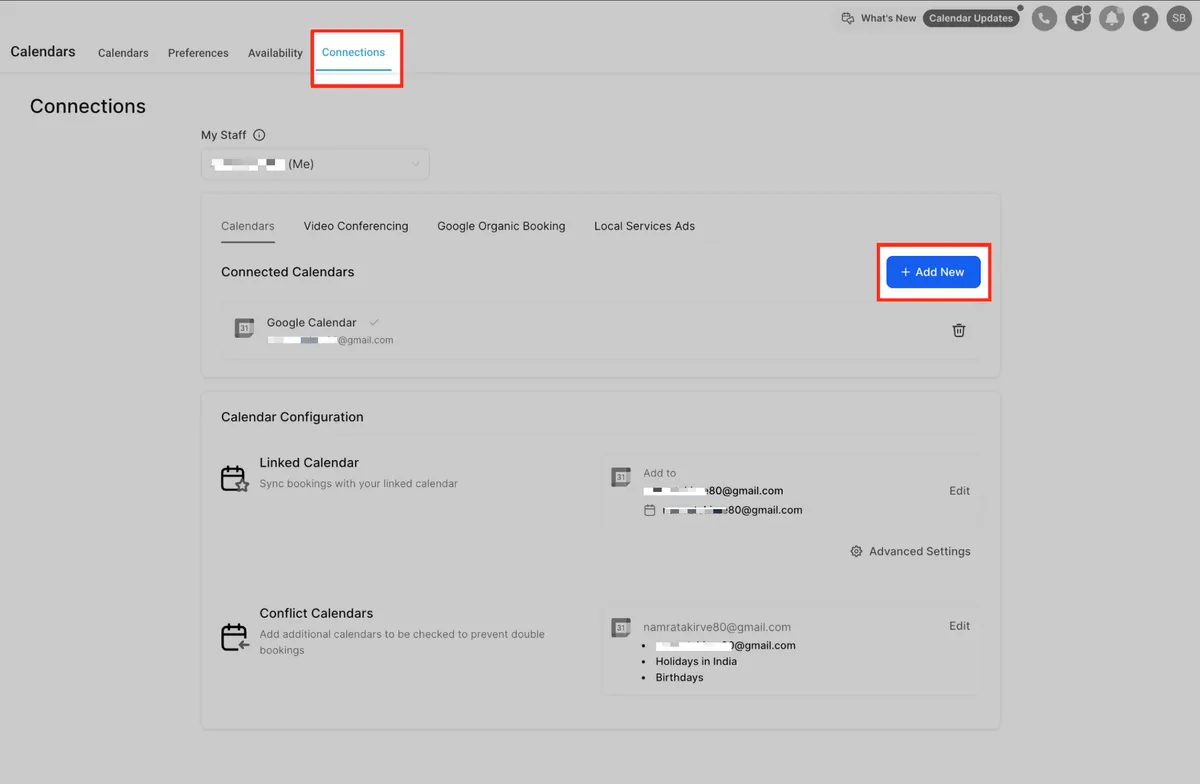
Add New Integration
Click the + Add New button to start a new calendar connection. This is where you’ll initiate the process to connect your Calendly account with HighLevel.
Select Calendly Option
Find Calendly in the list of calendar providers and click Connect. This begins the authorization process to sync your Calendly events with HighLevel.
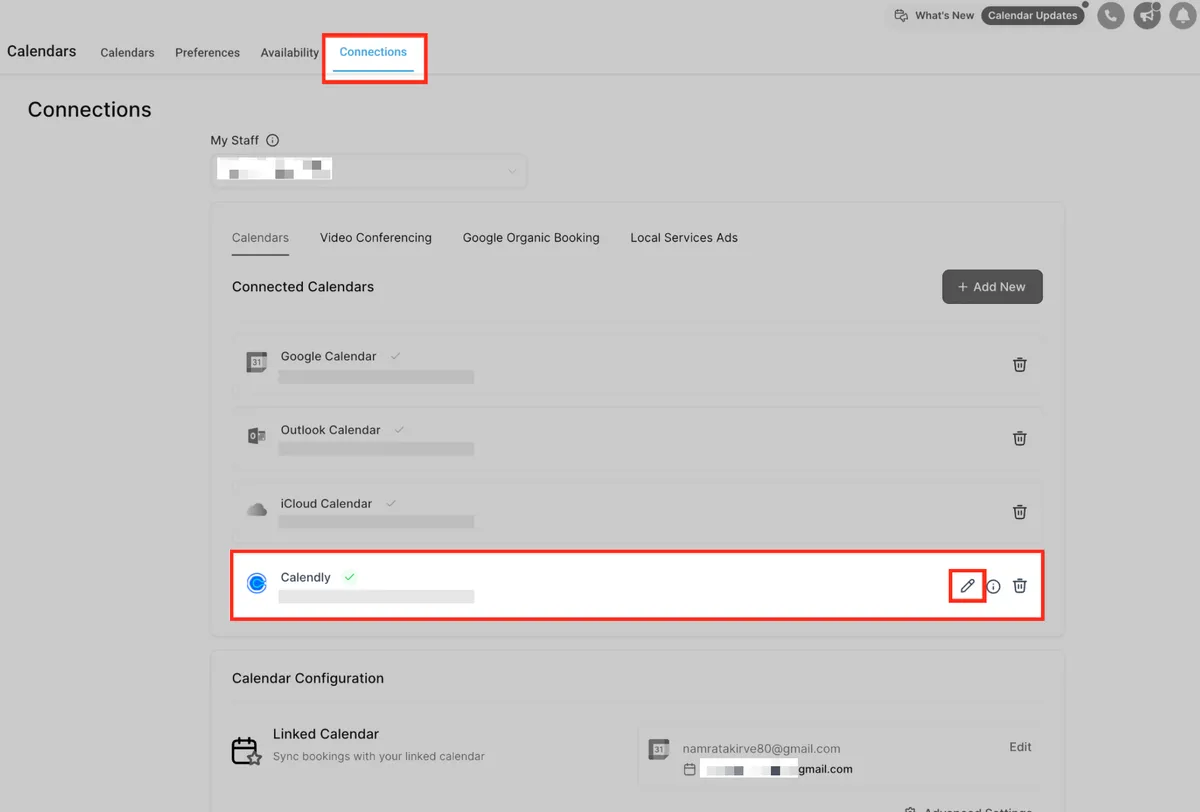
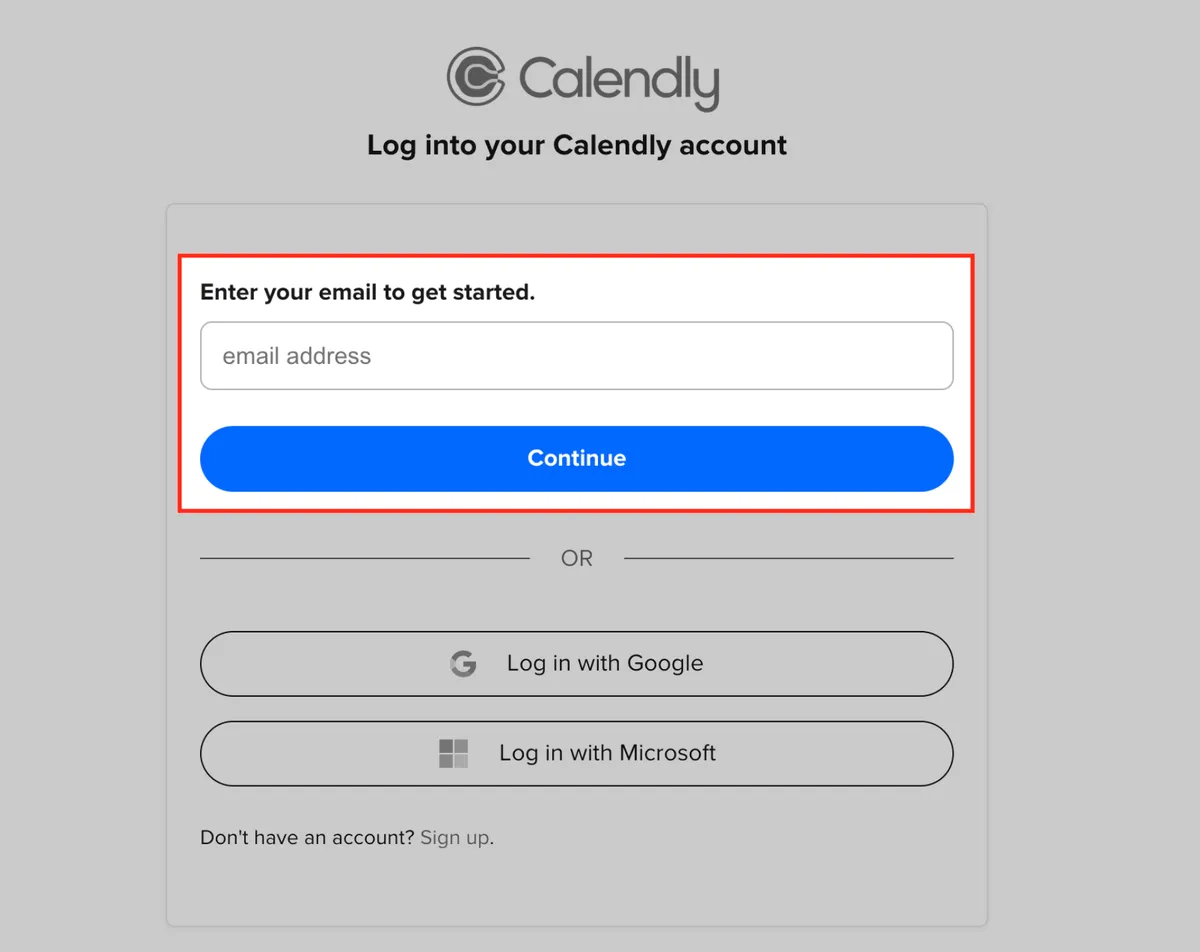
Log Into Calendly
Complete the authentication process by logging into your Calendly account and granting access. Enter the email address associated with your Calendly account and click Continue. You can also log in using your Google or Microsoft credentials if linked.
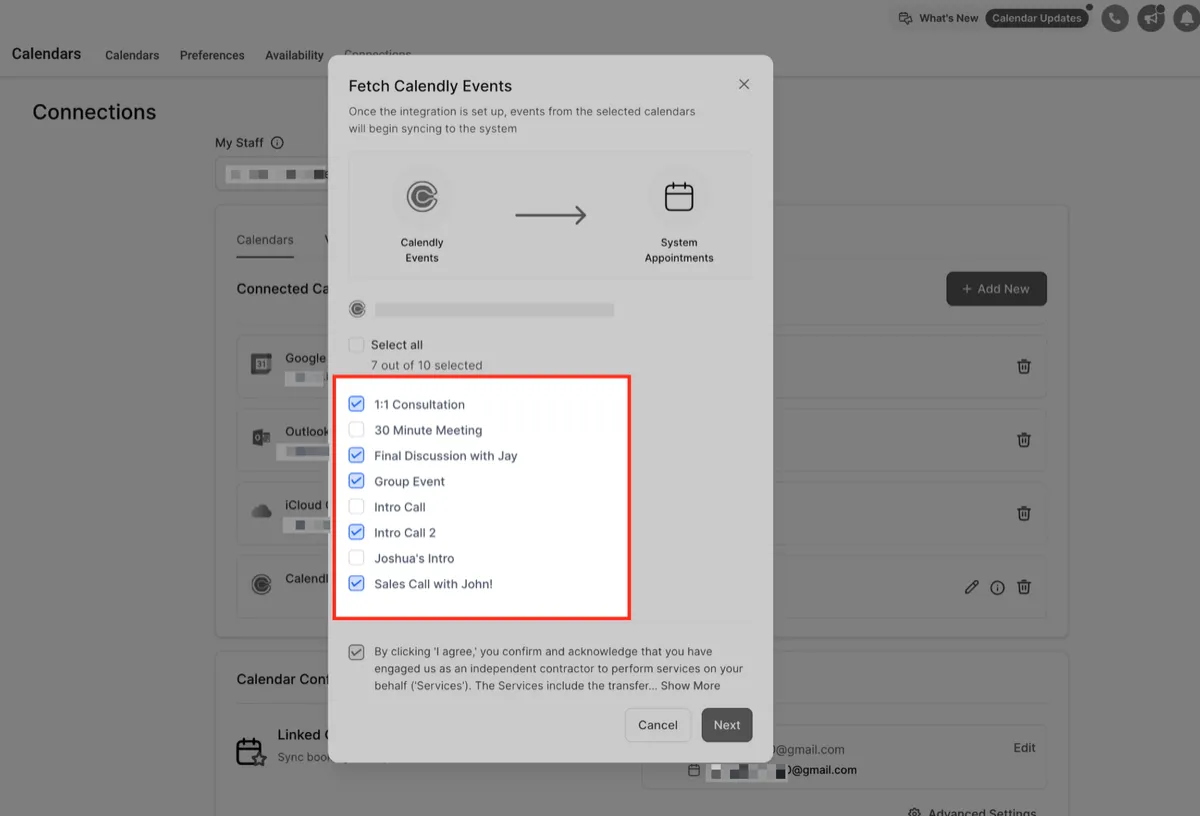
Choose Calendly Calendars
Select the Calendly calendars you want to sync into HighLevel. Only events from these selected calendars will be pulled into your system as appointments.
Approve Sync Access
Check the consent box to allow HighLevel to fetch your Calendly events and related details. Then click Save to complete the sync setup.
We automatically import both upcoming events and past events created within the last 180 days at the time of connecting your Calendly account.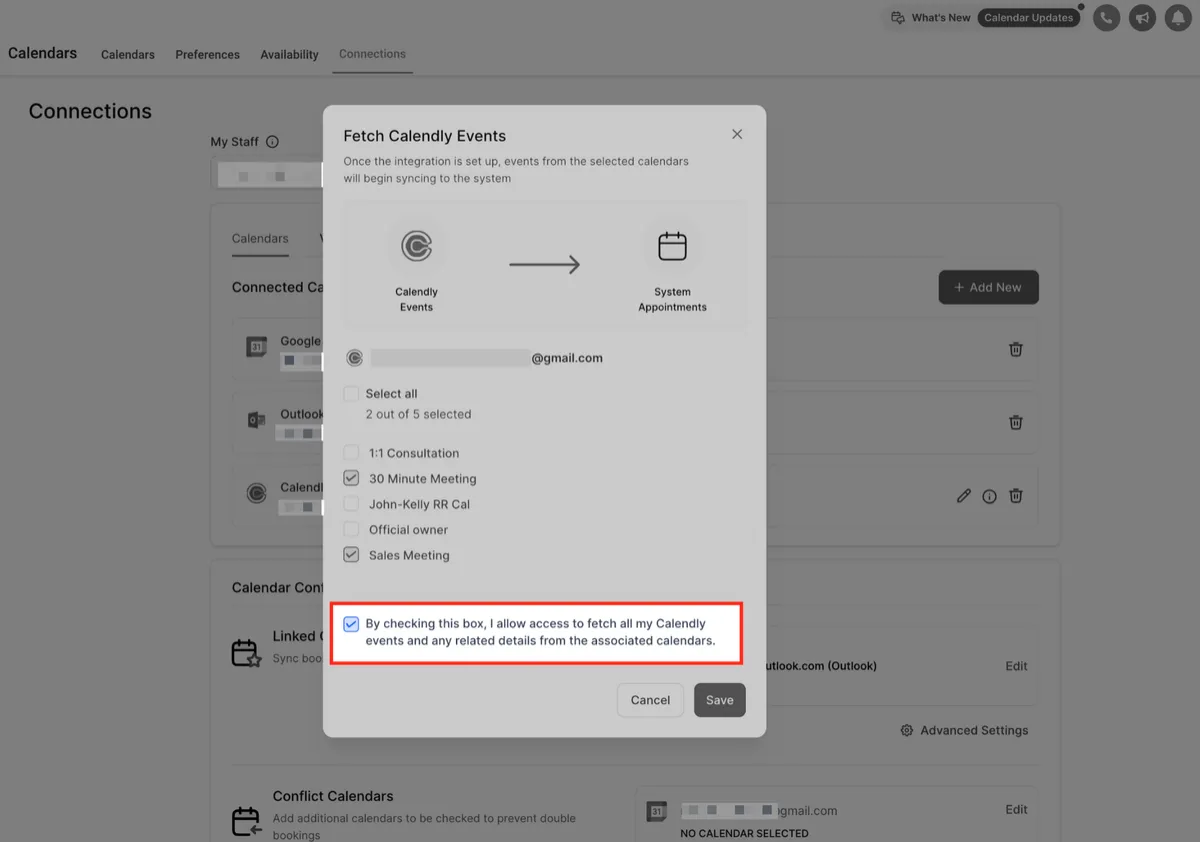
Copyright © 2026 by Dragonfly Reiki Marketplace. All Rights Reserved.